
📅 Published: April 2026 | ✍️ By Brad Andrews | ⏱️ 7 min read
The Backup Most Guides Skip
Here’s something most Home Assistant backup guides won’t tell you: your Z-Wave network is not inside your Home Assistant backup.
Let that sink in for a moment.
You can have daily automatic backups running flawlessly to two locations, a Synology NAS, Nabu Casa cloud, the works, and if your Z-Wave controller fails without a separate network backup, you could be looking at resetting and re-pairing every single Z-Wave device in your home.
For me that’s over 70 devices. Switches, locks, sensors, dimmers, every one of them would need to be reset, re-included, renamed, and reassigned. Days of work. Possibly a week. That’s not a recovery, that’s a rebuild.
The Z-Wave network state lives on the controller hardware itself, the chip, not the software. Home Assistant backs up its own configuration, automations, and integrations. It does not reach inside your Z-Wave dongle and copy what’s there. That’s your job, and this article shows you exactly how to do it.
Two Backups, One Goal
Inside Z-Wave JS UI there are two distinct backup types. Both matter. They serve different purposes and produce different files.
NVM Backup (.bin) NVM stands for Non-Volatile Memory, the actual memory stored on your Z-Wave controller chip. This is the one that saves you from disaster. It contains your entire Z-Wave network: every paired device, every network key, every association. When restoring to a new controller after a hardware failure, this is the file that brings your network back without touching a single device. Without it, every device gets reset and re-paired from scratch.
Z-Wave JS UI App Backup (.json) This backs up the Z-Wave JS UI application configuration, device names, room assignments, custom metadata, and the associations between your HA entities and your Z-Wave devices. It does not contain the network-level data that lives on the chip.
Both files together give you a complete picture. The NVM backup is the critical one. The app backup fills in the details. Pull both every time.
When to Back Up
There are two rhythms for Z-Wave backups.
Before any network change, without exception. Adding a device. Removing a device. Replacing a failed device. Updating controller firmware. Before any of these, pull both backups first. This is the one habit that has saved me multiple times across three controller migrations. Make it automatic, before you touch the network, you back it up. No exceptions.
Regularly, even when nothing is changing. Your Z-Wave network state evolves quietly over time, routing tables update, device associations shift, new neighbours get discovered. A backup from six months ago may technically work but miss months of mesh optimisation. I pull a manual backup whenever I’m doing any system maintenance, even if I’m not touching Z-Wave directly.
My scheduled HA backups run automatically every day. Z-Wave NVM backups are manual and intentional, and I save them to Proton Drive for offsite storage separate from my HA backup chain.
How to Pull a Z-Wave Backup
Step 1: Open Z-Wave JS UI
From inside Home Assistant, go to Settings → Add-ons → Z-Wave JS UI → Open Web UI.
Alternatively, if you have Z-Wave JS UI enabled in the left navigation sidebar, click the icon there directly to open it.
Step 2: Navigate to Advanced Actions
Inside the Z-Wave JS UI, click the hamburger menu in the bottom left corner. Select Advanced Actions from the menu.
Step 3: Back Up the NVM (The Critical One)
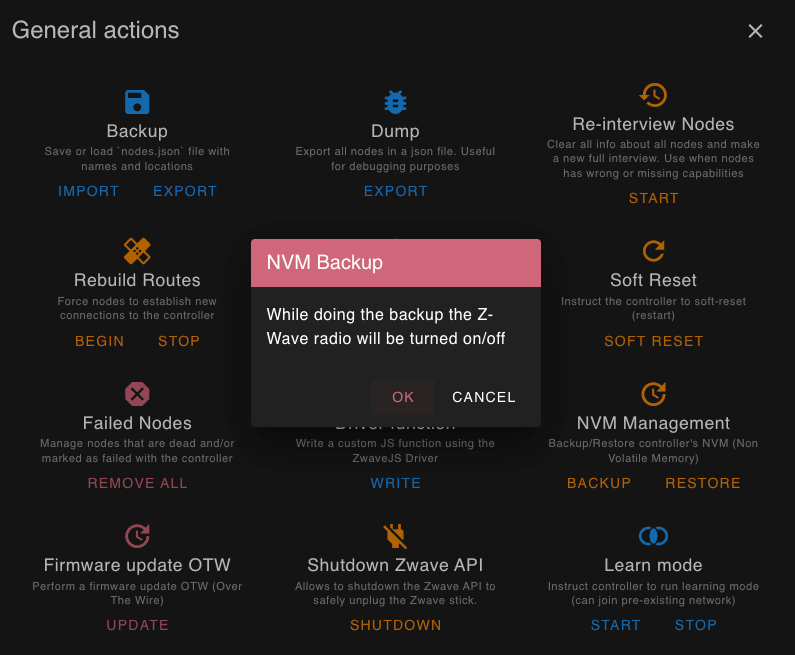
On the Advanced Actions page, find the NVM Management section. You’ll see two options that look similar, Backup and something labelled around NVM. Here’s the important distinction:
The option labelled Backup in Z-Wave JS UI backs up the application, the .json file covering device names, assignments, and UI configuration. That matters, but it’s not the network itself.
The NVM backup under NVM Management is what backs up the controller chip, the .bin file containing your actual Z-Wave network. Click the NVM backup option and download the .bin file when prompted.
Pull the app backup (.json) from the same screen as well. Store both files together.
Step 4: Save to a Secure Location
I save both files to Proton Drive, either through the Proton Drive sync app on my MacBook or the Proton Drive iOS app when I’m doing late-night maintenance from my phone while the kids fall asleep. Use whatever offsite or cloud storage you trust. The key is that it lives somewhere other than the machine running Home Assistant.
Name your files clearly. Something like:
zwave-nvm-backup-2025-04-20.bin
zwave-app-backup-2025-04-20.json
A datestamped filename takes five seconds and is invaluable when you’re trying to find the right restore point at 11pm.
Restoring Your Z-Wave Network
The restore process mirrors the backup. Open Z-Wave JS UI, navigate to Advanced Actions → NVM Management, and use the restore option to upload your .bin file.
One rule that cannot be overstated:
Unplug your old controller before restoring to a new one.
If you have two Z-Wave controllers active at the same time, they will fight over your devices. Controllers do not share networks gracefully, they compete for them. The result is a confusing, unreliable mesh that’s harder to diagnose than starting from scratch. Unplug the old hardware first. Always.
Three Controllers, Zero Lost Devices
I’ve migrated my Z-Wave network three times:
- HomeSeer ZNet with a 500-series chip, failing SD card, partial failure first, then permanent
- HomeSeer ZNet with a 700-series chip, ordered after the first failure, direct NVM restore
- Home Assistant Connect ZWA-2, current controller, migrated from the ZNet
Every migration used the NVM backup. Every one completed without resetting or re-pairing a single device. The third migration, to the ZWA-2, was almost anticlimactic. I had it up and running in about ten minutes.
I do run Home Assistant inside Proxmox, so there was one extra step: enabling USB passthrough from the host Proxmox machine to the Home Assistant VM. If you’re in the same setup, this is straightforward and well-documented in standard Proxmox guides, it’s a matter of identifying the USB device in the Proxmox UI and adding it to the VM’s hardware. Once that’s done, Home Assistant sees the ZWA-2 as a local USB device and the Z-Wave JS UI integration picks it up cleanly.
The ZWA-2 itself is excellent. Plug it in, restore your NVM, done. The upgrade from a five-year-old SD card running on a Raspberry Pi to a dedicated USB stick with an 800-series chip felt long overdue in hindsight.
📸 [Photo: Home Assistant Connect ZWA-2 USB dongle, ideally next to an older ZNet or similar for scale/comparison] Alt text: “Home Assistant Connect ZWA-2 Z-Wave USB controller dongle”
What About Zigbee?
I’ll be straight with you: I don’t run Zigbee. My setup is entirely Z-Wave, so I haven’t written a hands-on guide for Zigbee backup, and I’m not going to pretend I have experience I don’t.
What I can tell you is that the same principle applies. Your Zigbee coordinator state lives on the hardware, not inside your Home Assistant backup, and losing that without a backup means re-pairing your devices.
If you run ZHA or Zigbee2MQTT, the official documentation is the right place to start:
If I ever add Zigbee to my setup, you’ll hear about it here in full detail. My wife has made clear she has no strong feelings either way, so the door is open.
The Habit That Protects Everything
Z-Wave backup is not a set-and-forget task like your scheduled HA backups. It’s a discipline, a quick two-minute step you build into your workflow every time you touch your network.
Before you add a device: backup. Before you remove a device: backup. Before you update controller firmware: backup.
I learned this lesson the hard way with a five-year-old SD card. Thirty minutes to re-pair three switches was the lucky version of that story. The unlucky version is 70 devices and a week of evenings. Don’t find out which version you get.
What’s Next in This Series
- Part 4. Going Deeper: Proxmox, NAS, and a True Backup Stack, the full layered architecture for belt-and-suspenders protection
- Part 5. NAS as the Foundation, Synology, TrueNAS, UGREEN, and Docker: which platform fits which setup
Smart Home Secrets is reader-supported. We may earn a commission if you buy through our links.