
📅 Published: March 2026 | ✍️ By Brad Andrews | ⏱️ 11 min read
This is Part 2 of the Proton Series. If you haven’t set up Proton Mail with your own custom domain yet, start with Part 1: How to Set Up Proton Mail With Your Own Domain before continuing what we’re building here layers on top of that foundation.
The Goal of SimpleLogin and Secure Email
Most people think the goal of private email is a better inbox, but not me. Because It isn’t.
The real goal is control. Control over who has your address, control over what reaches you, and control over what happens when not if one of those companies you trusted with your email sells your data or gets breached and I have experienced my email being sold multiple times, I am sure you have too.
I use Proton Mail gives you the encrypted inbox. SimpleLogin gives you the shield in front of it. Together, they form something most people never think to build: an email setup where your real address is essentially invisible to the outside world, and you can cut off any source of spam with a single click.
I have been running this setup for a while now, and the combination has genuinely changed how I think about email. This post explains exactly how it works, how to set it up, and where it gets a little rough around the edges because it does.
What SimpleLogin Actually Does
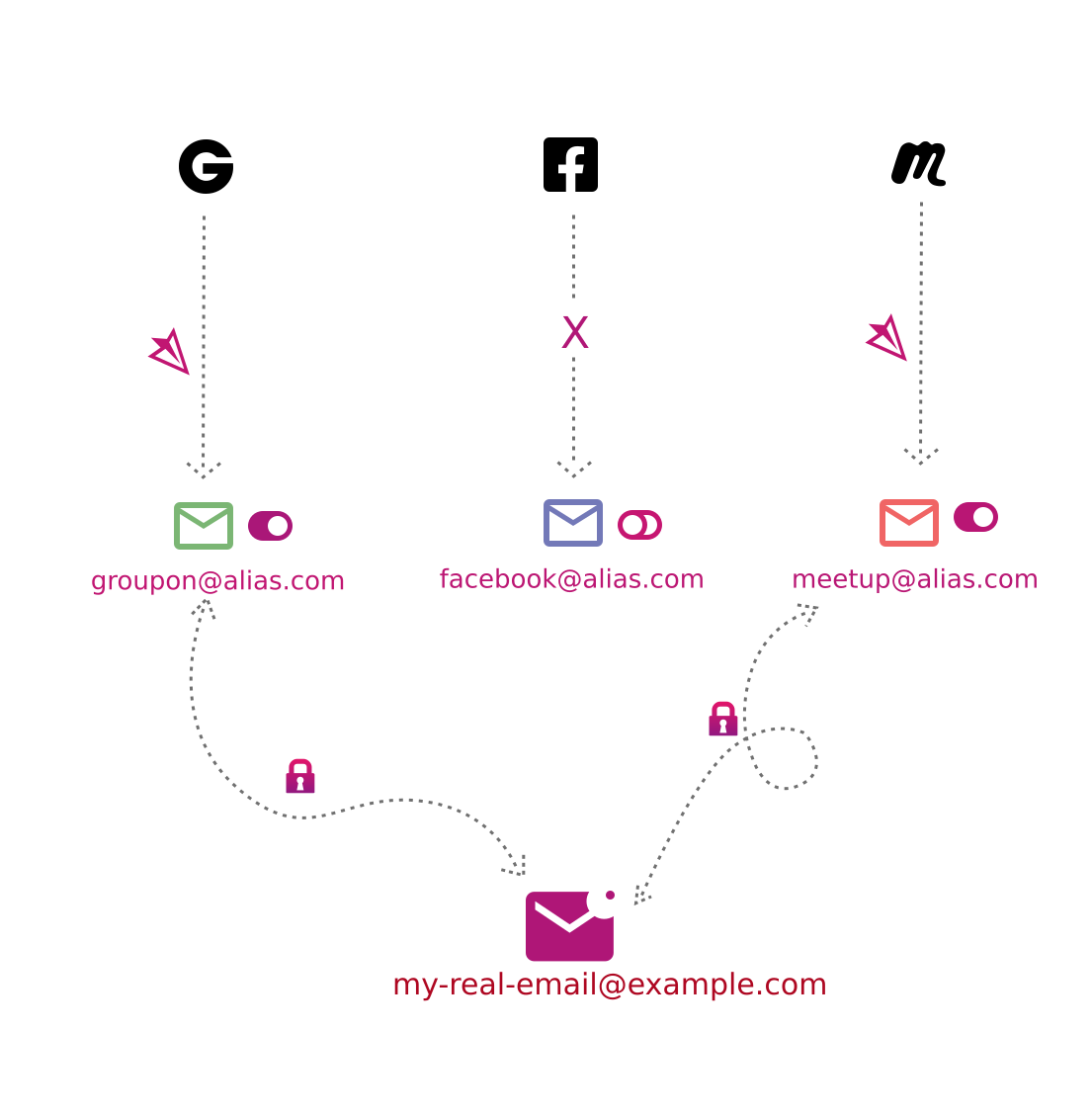
SimpleLogin is an alias service. Instead of handing out your real email address your actual Proton inbox you hand out an alias. That alias is a forwarding address that catches email and routes it to your real inbox. The sender never sees where it actually goes.
Here’s a simple example:
- Your real inbox:
you@proton.me(or your custom domain) - What you give to an online store:
amazon-orders@yourdomain.com - What actually lands in your inbox: an email from SimpleLogin, forwarded from that alias
The store only ever knows amazon-orders@yourdomain.com. If that address starts getting spam either because the store was breached or sold your data to a marketing list you disable the alias. One click. The spam stops immediately. Your real inbox stays clean.
SimpleLogin was acquired by Proton in 2022 and is now fully integrated into Proton Unlimited, Duo, and Family plans. If you’re already on one of those plans, you have access to SimpleLogin’s premium features at no extra cost.
How I Actually Use It
Here’s what my setup looks like in practice, because the real value of SimpleLogin goes beyond just blocking spam.
I use custom domains the same ones set up in Part 1 and I’ve organized my aliases around how I actually live:
work@[personaldomain].comanything from my employer, colleagues, or work-related serviceskids@[familydomain].comschool communications, activity registrations, anything related to the kidshello@smarthomesecrets.careader emails, contact form submissions, everything related to this site- Per-service aliases for any website that requires an account one alias per site
Then, inside Proton Mail, I use Sieve filters to sort everything automatically. Emails arriving via the work@ alias go to my Work folder. Emails via kids@ go to Family. SHS emails go to their own folder. My personal inbox stays focused on what actually needs my attention.
The result is an inbox that essentially organizes itself. Each alias acts like a labelled pipe you always know where an email came from and why, without touching a thing.
Aliases as Group Addresses
Here’s a feature that doesn’t get talked about enough: a single SimpleLogin alias can forward to multiple mailboxes at once.
My kids@[familydomain].com alias forwards to my Proton inbox, my wife’s Proton inbox, and the kids’ own email addresses all on our shared Proton Family plan. Any email from the school, a sports registration, or a camp sign-up lands in both our inboxes automatically. No forwarding rules, no CC chains, no “did you see this?” texts.
But the use case that actually made this click for me was daycare.
When our kids were little, their daycare would send daily updates a note about their day, a few photos. We gave the daycare our kids@ alias. That one address delivered every update to my inbox, my wife’s inbox, and the kids’ own email addresses simultaneously.
Our kids don’t know those inboxes exist yet. But when they’re old enough to open them, every photo and update from their earliest years will be sitting there waiting for them already organized, already preserved, already theirs.
That’s the kind of thing you can build when email is infrastructure you actually control.
It works because SimpleLogin lets you add multiple destination mailboxes to a single alias. Everyone needs to be registered as a mailbox in your SimpleLogin account first, but once they are, it’s just a checkbox when setting up or editing the alias. For families or small teams, this is one of those features that seems niche until you find your use case and then it becomes indispensable.
What are Sieve filters? Sieve is a scripting language for email filtering that Proton Mail supports natively. It’s more powerful than the standard filter UI. You can write rules like “if this email arrived at alias X, move it to folder Y and mark it read.” Proton has a full guide here: Sieve Advanced Custom Filters
The Spam Kill Switch And Why It Matters
I haven’t had an account fully compromised, but I’ve absolutely watched aliases get sold.
You give a service your alias. A few months later, you start getting marketing emails from companies you’ve never heard of but they’re all arriving at that specific alias. You know exactly who sold your data. You disable the alias. Done.
Stop spam immediately. No need to unsubscribe from a dozen lists. Peace of mind knowing if it’ll keep coming, spoiler it won’t. The alias is gone and anything sent to it bounces or disappears, depending on how you configure it.
This is the part of SimpleLogin that people underestimate until they’ve actually used it. It’s not just a privacy tool it’s a spam management tool that puts you completely in control.
Setting Up SimpleLogin With Proton Mail
If you followed Part 1 and your custom domain is already routing through Proton Mail, you have two paths here.
Path A: You Want Your Domain to Route Through SimpleLogin (Recommended)
This is the setup I run. Your MX records point to SimpleLogin’s servers instead of Proton’s. SimpleLogin catches everything first, applies alias logic, and forwards to your Proton inbox.
The DNS records look structurally similar to a direct Proton setup you’ll still be setting MX, SPF, DKIM, and DMARC but the values point to SimpleLogin instead of Proton.
Step 1: Log into SimpleLogin
Go to simplelogin.io and sign in. If you’re on Proton Unlimited or higher, you can log in directly with your Proton account they’re linked.
Step 2: Add Your Custom Domain
In SimpleLogin, go to Dashboard → Domains → Add a domain. Enter your domain name and click through to the DNS verification step.
Step 3: Update Your DNS Records
SimpleLogin will show you exactly which records to add. You’re replacing (or adding, if this is a fresh domain) the following:
| Record Type | Host | Value |
|---|---|---|
| MX | @ | mx1.simplelogin.co (priority 10) |
| MX | @ | mx2.simplelogin.co (priority 20) |
| TXT (SPF) | @ | v=spf1 include:simplelogin.co ~all |
| TXT (DKIM) | dkim._domainkey | (provided by SimpleLogin unique to your domain) |
| TXT (DMARC) | _dmarc | v=DMARC1; p=quarantine; rua=mailto:your@email.com |
If you’re switching from Proton-direct DNS: Remove the Proton MX records and SPF/DKIM values before adding SimpleLogin’s. Don’t run both you’ll get delivery issues. DNS changes propagate within minutes to a few hours depending on your registrar’s TTL settings.
Step 4: Verify the Domain in SimpleLogin
Once your DNS is updated, return to SimpleLogin and click Verify. It may take a few minutes for the check to pass. Once it does, your domain is live in SimpleLogin.
Step 5: Connect SimpleLogin to Your Proton Inbox
In SimpleLogin, go to Settings → Mailboxes → Add a Mailbox. Add your Proton address (your @proton.me or custom domain address that lives in Proton). Confirm the verification email that arrives. This is the destination where SimpleLogin will forward everything it receives.
Step 6: Create Your First Aliases
Go to Dashboard → Aliases → New Alias. Choose your custom domain, set the alias prefix (e.g., work, kids, newsletters), and point it to your Proton mailbox. That’s it the alias is live.
Path B: You Want to Keep Proton-Direct DNS and Use SimpleLogin for New Aliases Only
If you’d rather not change your DNS setup, this is also valid. Your existing custom domain email keeps flowing directly into Proton. You use SimpleLogin to generate fresh aliases (either on SimpleLogin’s own domains, or on a second domain you add to SimpleLogin) for new services going forward.
This is simpler to set up but means your older addresses don’t benefit from SimpleLogin’s forwarding layer. A reasonable middle ground if you want to try the service before committing to a DNS change.
Creating Aliases on the Go The Proton Pass Integration
One of the most useful things about the Proton ecosystem is that Proton Pass the password manager has SimpleLogin’s alias generator built directly into it.
When you’re creating a new account on a website, Proton Pass can suggest a new unique alias on the spot, the same way it suggests a generated password. You create the alias, save the login, and move on. The alias is registered in SimpleLogin and starts forwarding immediately.
This is the workflow that makes the per-service alias habit actually stick. Without it, you’d have to context-switch to SimpleLogin every time. With it, it’s just part of filling out a form.
The Part That Needs Work: Sending Email From an Alias
Here’s the part of the SimpleLogin setup that I have a genuine love/hate relationship with and I want to be completely honest about it because most guides gloss over it.
Receiving email through an alias works perfectly. The problem is sending new email from one.
By default, when you hit Compose in Proton Mail, it will use your Proton address as the sender not your SimpleLogin alias. Even if you have a custom domain set up in Proton, the aliases you’ve created in SimpleLogin aren’t automatically available in Proton’s “From” dropdown.
This means that if you want to send a new email from work@yourdomain.com not reply to something, but compose fresh you need to use SimpleLogin’s reverse alias system.
Here’s how it works:
- In the SimpleLogin app (mobile or web), open the alias you want to send from.
- Find the Activities or Contacts section and add the recipient’s email address.
- SimpleLogin generates a unique routing address for that specific recipient something like
recipient_name_[hash]@simplelogin.co. - You send your email in Proton Mail to that routing address.
- SimpleLogin intercepts it, rewrites the sender as your alias, and delivers it to your intended recipient.
From the recipient’s perspective, the email came from your alias. They never see the routing address.
In practice: Once you’ve added a contact for a given alias, it stays there. Replying to emails that already arrived at your alias is completely seamless Proton handles that automatically. It’s only when starting a brand new conversation with someone who isn’t already in that alias’s contact list that you need to go through this process.
It works. But it’s tedious, especially if you’re emailing multiple new recipients. For non-technical users, I’ll be honest: this is the friction point that could break the habit.
What Proton needs to fix: The ability to choose a SimpleLogin alias from Proton Mail’s “From” field when composing a new email. This would eliminate the reverse alias workaround entirely and make the whole setup genuinely seamless. The integration between Proton and SimpleLogin is deep in many ways this is the gap that matters most for daily use.
Proton Calendar note: While we’re being honest about rough edges Proton Calendar always sends meeting invites from your primary Proton username, regardless of what alias or custom domain you normally use. There’s no way to change this currently. If you send calendar invites to colleagues or contacts who only know your custom domain alias, this is jarring. Hopefully Proton addresses this alongside the compose-from-alias gap.
Organizing Everything With Sieve Filters
Once your aliases are set up and email is flowing, Proton Mail’s Sieve filter support is what ties the whole thing together.
A simple Sieve rule might look like this:
require ["fileinto", "envelope"];

if envelope :is "to" "work@yourdomain.com" {
    fileinto "Work";
}

if envelope :is "to" "kids@familydomain.com" {
    fileinto "Family";
}
This checks the envelope recipient (the alias the email was sent to) and routes it to the appropriate folder automatically. You can layer in additional conditions mark as read, apply labels, set priority all within the same filter.
Proton’s Sieve implementation is reasonably full-featured. The full documentation is here: Proton Sieve Advanced Custom Filters. It’s worth spending an hour with if you’re going to run multiple aliases the payoff in inbox clarity is significant.
Quick Reference: SimpleLogin Setup Checklist
| Step | What to Do |
|---|---|
| 1 | Log into SimpleLogin (use Proton account if on Unlimited/Duo/Family) |
| 2 | Add your custom domain under Dashboard → Domains |
| 3 | Update MX, SPF, DKIM, DMARC records at your registrar to point to SimpleLogin |
| 4 | Verify domain in SimpleLogin dashboard |
| 5 | Add your Proton inbox as a Mailbox in SimpleLogin Settings |
| 6 | Create your first aliases and point them to your Proton mailbox |
| 7 | Install Proton Pass to generate aliases on the fly |
| 8 | Set up Sieve filters in Proton Mail to sort by alias |
| 9 | For new outbound emails from an alias: add recipient as a contact inside SimpleLogin first |
Is It Worth the Setup?
Yes with the right expectations.
If you want a completely seamless experience where you never think about any of this, you’re not there yet with the current toolset. The compose-from-alias gap is real friction and Proton needs to close it.
But if you’re willing to spend an afternoon on the initial setup, what you get on the other side is genuinely powerful: an inbox where your real address is invisible, spam can be eliminated with one click, your incoming mail is automatically sorted by context, and no breach or data sale can follow you.
I run this across my personal domain, my family domain, and this site. It’s become the kind of infrastructure you stop thinking about because it just works and when it doesn’t (someone selling your alias), you fix it in seconds.
What’s Next
With your inbox locked down behind SimpleLogin, the next piece of the Proton ecosystem to tackle is passwords.
Part 3: Proton Pass Review and Setup A Password Manager Built for the Privacy-Conscious covers how Proton Pass works, how the built-in SimpleLogin alias generator fits into your daily workflow, and an honest comparison with alternatives like Bitwarden and 1Password.
Smart Home Secrets is reader-supported. We may earn a commission if you buy through our links.