
📅 Published: March 2026 | ✍️ By Brad Andrews | ⏱️ 11 min read
This is Part 3 of the Proton Series. Parts 1 and 2 cover setting up Proton Mail with a custom domain and how SimpleLogin works with Proton Mail. You don’t need to have read those to benefit from this post, but if you’re building a full privacy-first email and identity setup, start there.
Most people treat their password manager like a utility something that works in the background, remembered only when it doesn’t. They picked one years ago, they’re vaguely aware they should use stronger passwords, and they haven’t thought about it since.
I’ve never been that person. Over my IT career I’ve used more password managers than most people know exist Intel TrueKey, PasswordBoss, Keeper, 1Password, PasswordState, and Enpass, before landing on Proton Pass two years ago. Each switch was driven by the same realization: the tool I was trusting with every login I owned wasn’t keeping pace with how I actually worked, or it was solving problems I didn’t have while ignoring ones I did.
TrueKey had potential but Intel eventually wound it down entirely exactly the kind of vendor risk you don’t want from something this critical. PasswordBoss and Keeper are solid products but never quite fit how I worked across devices. 1Password is genuinely excellent and still my choice professionally for managing client accounts, but paying for it separately when Proton Pass is included in my family plan stopped making sense once I evaluated it honestly. PasswordState is a strong enterprise option but built for teams, not personal use. Enpass was my personal daily driver for a while a meaningful step up from what came before but cross-platform consistency was a constant frustration across Mac, iPhone, iPad, and Android tablet.
When I committed to the Proton ecosystem for email and privacy, the decision to consolidate onto Proton Pass made sense on paper it’s included in my Proton Family plan, so the question was whether it was actually good enough or whether I’d be making a daily-use compromise just to avoid a second subscription fee.
Two years in, my whole family is on it. It wasn’t a compromise.
What Proton Pass Actually Is
Proton Pass is a zero-knowledge password manager meaning Proton’s servers store your vault in encrypted form that even Proton cannot read. Your encryption keys never leave your devices. If Proton were breached tomorrow, your passwords would be unreadable to whoever got in.
It’s available as:
- A browser extension (Chrome, Firefox, Brave, Safari, Edge)
- A mobile app (iOS and Android)
- A desktop app (Mac, Windows, and Linux)
It stores passwords, passkeys, credit cards, personal identity information, and secure notes. It generates strong unique passwords. And because it’s built by the same company that makes SimpleLogin it has an alias generator baked directly into the extension.
Migrating to Proton Pass: What’s Actually Involved
If you’re just here for a password manager and not changing your email address, getting started is straightforward. Export a CSV from your current manager, import it into Proton Pass, and spend some time cleaning up any fields that didn’t map cleanly notes fields and custom fields are the most common places where things go sideways. If you’re starting fresh with no existing vault, it’s even simpler: just start adding entries and let the browser extension capture logins as you go.
My own migration from Enpass involved nearly 400 passwords. The import took about an hour including cleanup. That part was easy.
What turned it into a full Saturday was doing it alongside an email migration updating the address on every one of those accounts from Gmail to either a Proton address or a SimpleLogin alias. If you’re just switching password managers and keeping your existing email, you can skip this entirely. But if you’re doing both at once, it’s worth having a framework before you start rather than making decisions on the fly for 400 services.
For anything important banking, government, services I’d want to keep regardless of email provider I used an alias on my own custom domain. I own it, which means I can point it elsewhere if I ever leave Proton. For everything else, a random SimpleLogin alias adds an extra layer of separation. No wrong answer, but decide your approach upfront.
Day-to-Day Experience: Browser Extension and Autofill
I use Proton Pass across Brave and Safari on desktop, the iPhone and iPad apps, and an Android tablet. My honest ranking after two years of daily use: it’s the second best password manager I’ve used, behind only 1Password.
That’s not a backhanded compliment. 1Password is the gold standard my IT business runs on it for client management and it has no real weaknesses. But for personal use, Proton Pass is so close in day-to-day experience that the gap is nearly academic. Autofill works reliably. Cross-device sync is seamless. The interface is clean and intuitive in a way you wouldn’t necessarily expect from a security-first company.
My wife came to it reluctantly. She’s not a password manager person by nature or wasn’t. It took about two weeks of autofill actually working consistently across her phone and laptop before she stopped complaining about the switch. Now she uses it without thinking about it, which is exactly the outcome you want.
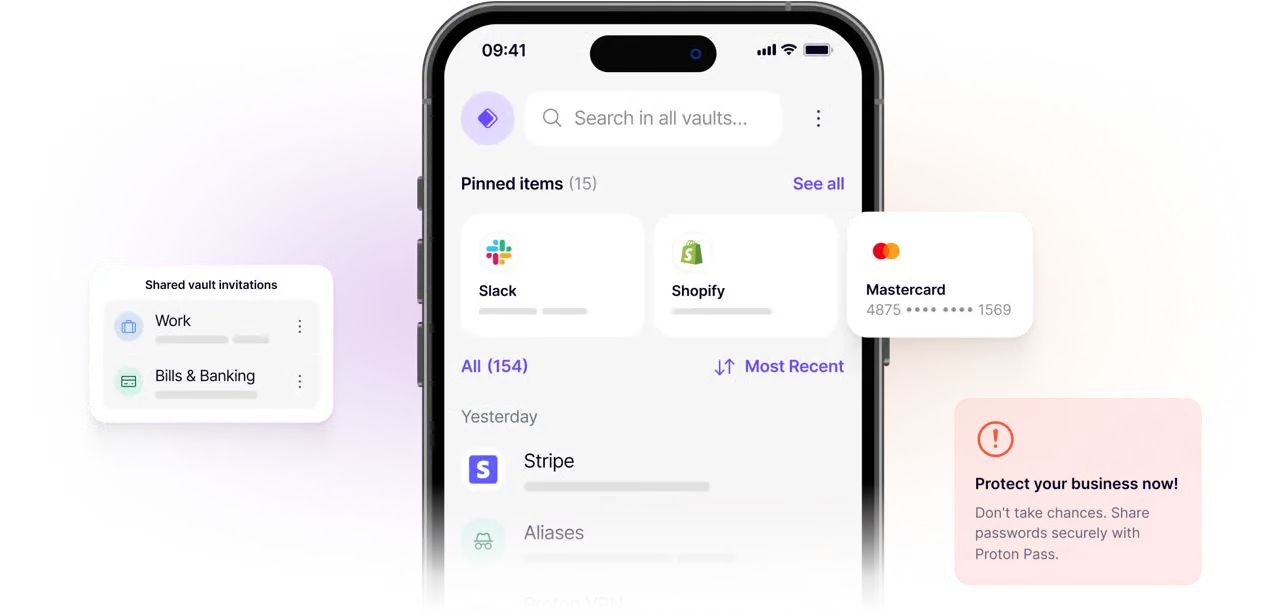
The browser extension is where you’ll spend most of your time. When you land on a login page, Pass detects it and offers to fill. When you’re creating a new account, it offers to generate a password and, critically, it offers to generate a SimpleLogin alias at the same time.
The Alias Integration: How It Works in Practice
When you click the Proton Pass extension on a signup form, you’ll see the option to create a new login and generate a new alias in the same flow. Click the alias option, choose your domain or a SimpleLogin domain, and it creates the alias and populates the email field all without leaving the page.
This is the workflow that makes the one-alias-per-site habit actually sustainable. Without it built into the password manager, you’d be context-switching to SimpleLogin every time you signed up for something. With it, it’s just part of filling out a form.
Why one alias per site matters: Every service you use now has a unique password and a unique email address and (if you’ve set it up) a unique MFA code. That’s three independent credentials, all different, all meaningless to anyone who might obtain one of them. If a service is breached and your login is exposed, the attacker has an email address that only works for that one site, a password that only works for that one site, and still has to get through MFA. The blast radius of any single breach is zero.
One gripe worth mentioning: When you create a login with an alias through Proton Pass, you end up with two separate entries in your vault one for the alias itself and one for the login credentials. I understand the reasoning (an alias can technically be used across multiple logins), but in practice most people use one alias per site, and having two entries per service adds visual clutter. This is the kind of UX detail that would meaningfully improve the experience if Proton chose to address it.
Vaults and Family Sharing
This is where Proton Pass handles itself really well, and it’s worth covering because it’s one of the features that varies most between password managers.
Proton Pass supports multiple vaults essentially separate containers within your account. My setup:
- Personal vault my own logins, only I can see it
- Shared family vault logins my wife and I both need: streaming services, shared accounts, home-related things
- Sensitive information credit cards, passport numbers, driver’s licence details, stored securely and accessible when needed
My wife has the same structure on her account, and we’ve granted each other emergency access to our respective vaults. Not because we distrust each other but because if something happened to either of us, the other one needs to be able to get in.
On our Proton Family plan, I’ve also extended access to my parents. I’m the family IT support, which historically meant fielding “I forgot my password again” calls every few weeks. My parents now have Proton Pass, their logins are in it, and they’re using passwords that aren’t the name of their first pet followed by their birth year. That alone has been worth it.
Practical note: The credit card autofill is genuinely convenient. I won’t pretend my wife and I haven’t made more than a few online purchases from the couch purely because Proton Pass made it frictionless. Make of that what you will.
The Honest Weaknesses
Linux Support
Proton Pass does now have a Linux desktop app, which is good to see. The broader Proton product line still has inconsistent Linux coverage though which remains a head-scratcher for a privacy-focused company whose natural audience skews heavily toward people who care about local control and data sovereignty. Pass getting there is a step in the right direction.
Emergency Access Important Nuances
Because Proton Pass uses zero-knowledge encryption tied to your Proton account, forgetting your Proton password isn’t just an inconvenience it’s a potential lockout from your entire vault.
Proton does have an emergency access system, and I have it configured. You can read the full details here: Proton Emergency Access. But there are two things worth understanding before you rely on it:
First, emergency access requires a paid Proton plan it’s not available on the free tier. If you’re using free Proton to try things out, your vault recovery options are limited.
Second, your designated emergency contact must have a Proton account. This isn’t arbitrary it’s a consequence of how the encryption works. Proton can’t hold your keys, so recovery has to happen through another trusted Proton account that can handle the cryptographic handoff. It’s the right architectural decision for privacy, but it means you can’t just list a family member who uses Gmail as your emergency contact. They need to be in the ecosystem.
Set this up before you need it, and make sure whoever you designate actually has an active Proton account.
What Trustpilot Reviews Actually Tell You
If you search Proton on Trustpilot before signing up, the overall rating for Proton Mail will give you pause it sits at 2.4 out of 5 from over 1,600 reviews. That number deserves context before you dismiss the product based on it.
Read through the reviews and a clear pattern emerges: the negative feedback is almost entirely about customer support, not the product itself. Slow response times, automated replies, and accounts being restricted without clear communication are the recurring themes. Proton’s support is email-only no live chat, no phone and when something goes wrong with account access, that’s a frustrating combination.
What the score doesn’t reflect is two years of daily use across my whole family without a single product failure. The encryption works. The apps are reliable. The sync is seamless. The people leaving one-star reviews aren’t wrong about support Proton genuinely needs to improve there but they’re not reviewing the same experience most paying users have day-to-day.
My honest take: if you need fast, responsive support and you’re not technical enough to self-serve through documentation, factor that in. If you’re comfortable setting things up correctly from the start which this series is designed to help you do the support gap is unlikely to affect you.
The Free Plan
Worth mentioning: Proton Pass has a free tier. It’s genuinely functional not a crippled trial and it’s a reasonable way to evaluate the product before committing to a paid plan. Most competing password managers of this quality don’t offer a meaningful free option. If you want to test it before going all-in, the free plan is a legitimate starting point.
How It Compares
Since I use 1Password professionally and Proton Pass personally, I can give you an honest side-by-side rather than a spec sheet comparison.
First, what all three get right because the baseline is genuinely solid across the board. Proton Pass, 1Password, and Bitwarden all offer zero-knowledge encryption, browser extensions for every major browser, mobile apps on iOS and Android, desktop apps across Mac, Windows, and Linux, passkey support, vault sharing, and family plans. If you pick any of the three, your passwords are encrypted, synced, and meaningfully more secure than whatever you were doing before.
The differences that actually matter for personal use come down to a handful of things:
| Feature | Proton Pass | 1Password | Bitwarden |
|---|---|---|---|
| Built-in email alias generation | ✅ SimpleLogin | ❌ | ❌ |
| Dark web monitoring | ✅ Built-in | ✅ (Watchtower) | ❌ |
| Free tier | ✅ Functional | ❌ Trial only | ✅ Functional |
| UI consistency across apps | ✅ Excellent | ✅ Very good | ⚠️ Inconsistent |
| Interface simplicity | ✅ Cleanest | Good | ⚠️ Can be confusing |
The table still doesn’t fully capture the interface gap. Proton Pass is the most intuitive of the three which genuinely surprised me given it’s the newest product. Everything is where you expect it, and the experience is consistent whether you’re in the browser extension, the desktop app, or on your phone.
Bitwarden is the odd one out. It’s a capable product and the open-source crowd loves it, but the interface feels noticeably inconsistent between apps and less polished than either competitor. For non-technical users that friction adds up and it doesn’t need to, because the underlying product is solid.
1Password’s interface is excellent and well-considered, but Proton Pass has surpassed it on simplicity for everyday personal use. For most individuals and families, Proton Pass covers everything you need and if you’re already paying for Proton Mail or Drive, it costs you nothing extra.
Setting Up Proton Pass
If you’re starting fresh or migrating from another manager, here’s the path:
Step 1: Create your Proton account
If you’re already on Proton Mail, you already have Proton Pass it’s included. Log into pass.proton.me with your existing Proton credentials.
Step 2: Install the browser extension
Search for Proton Pass in your browser’s extension store, or install directly from the Proton Pass website. Log in with your Proton account.
Step 3: Import your existing passwords
Go to Settings → Import and choose your current password manager from the list. Most major managers are supported. Export a CSV from your current tool, import it into Proton Pass, and review the results. Expect to spend some time cleaning up edge cases notes fields and custom fields are the most common places where things don’t map perfectly.
Step 4: Install on your devices
Download the iOS or Android app and log in. Proton Pass will prompt you to enable autofill in your device settings follow the prompts. On iOS this is under Settings → Passwords → AutoFill Passwords. On Android it varies slightly by version but is typically under Settings → General Management → Passwords and Autofill.
Step 5: Set up your vaults
Create a personal vault and, if you’re sharing with family, a shared vault. Invite family members via Settings → Share → Invite people. They’ll need a Proton account to accept.
Step 6: Configure emergency access
Do this now, not later. Go to Settings → Security → Emergency Access and designate a trusted contact. They must have a Proton account. Full details at proton.me/support/emergency-access.
Step 7: Enable the SimpleLogin alias integration
In the browser extension, go to Settings → Aliases. If you’re on a paid Proton plan, your SimpleLogin account is already linked. Select your preferred alias domain either a SimpleLogin domain or your own custom domain if you’ve set one up in SimpleLogin.
Quick Reference: Proton Pass Setup Checklist
| Step | What to Do |
|---|---|
| 1 | Log into pass.proton.me with your Proton account |
| 2 | Install browser extension in Brave, Chrome, Firefox, or Safari |
| 3 | Import passwords from your existing manager via Settings → Import |
| 4 | Install mobile app and enable autofill in device settings |
| 5 | Create personal vault and shared family vault |
| 6 | Invite family members (they need a Proton account) |
| 7 | Configure emergency access designate a trusted Proton contact |
| 8 | Link SimpleLogin alias domain in extension settings |
| 9 | Start using one alias per new service going forward |
Is It Worth Switching To?
If you’re already on a paid Proton plan for Mail or Drive, yes without hesitation. You’re already paying for it. Proton Pass at this quality level included in the plan is genuinely one of the better deals in the privacy software space.
If you’re evaluating it as a standalone product: it’s excellent for personal and family use, the free tier is a legitimate way to start, and the SimpleLogin integration is a genuine differentiator that no other password manager offers. The Linux gap is a real weakness if that affects you, and the emergency access constraints are worth understanding before you commit.
Two years in, with my whole family on it, I haven’t once wished I’d stayed on Enpass.
What’s Next
With email, aliases, and passwords locked down, Part 4 brings it all together.
Part 4: Why I Switched My Entire Digital Life to Proton And What It Actually Cost Me is the hub post for the whole series the migration story, the full product breakdown, the family setup, and an honest accounting of what works, what doesn’t, and whether it’s worth it for someone who isn’t already deep in this stuff.
Smart Home Secrets is reader-supported. We may earn a commission if you buy through our links.