
📅 Published: April 2026 | ✍️ By Brad Andrews | ⏱️ 9 min read
Most people set up a security camera and stop at the recording. They get motion clips in an app, maybe a notification here and there, and call it done.
Here’s what they’re missing: when you integrate UniFi Protect with Home Assistant, those cameras stop being passive recorders and start being active inputs for your entire home. Package detected. Someone at the door. Person in the backyard. Dog barking. Each one can trigger something useful, something automated, something that would have taken a human decision before.
I have a G4 Doorbell at my front door, a G4 Pro watching the pool, an AI360 covering the side yard, and another G4 Pro on the deck. Together they power some of the automations I rely on most. Let me walk you through exactly how I’ve set them up.
Why UniFi Protect Makes Sense for a Local Setup
Before we get into the automations, the reason UniFi made sense for me comes down to one word: local.
The UniFi Protect integration in Home Assistant is fully local. No cloud relay, no subscription, no latency waiting for a round-trip to a server somewhere. When my G4 Doorbell detects a package, that state change hits Home Assistant in under a second. The announcement plays before I’ve even looked at my phone.
That matters for automations. Cloud-dependent cameras introduce a lag that makes presence and detection triggers feel sluggish. Local detection feels like the camera is actually thinking.
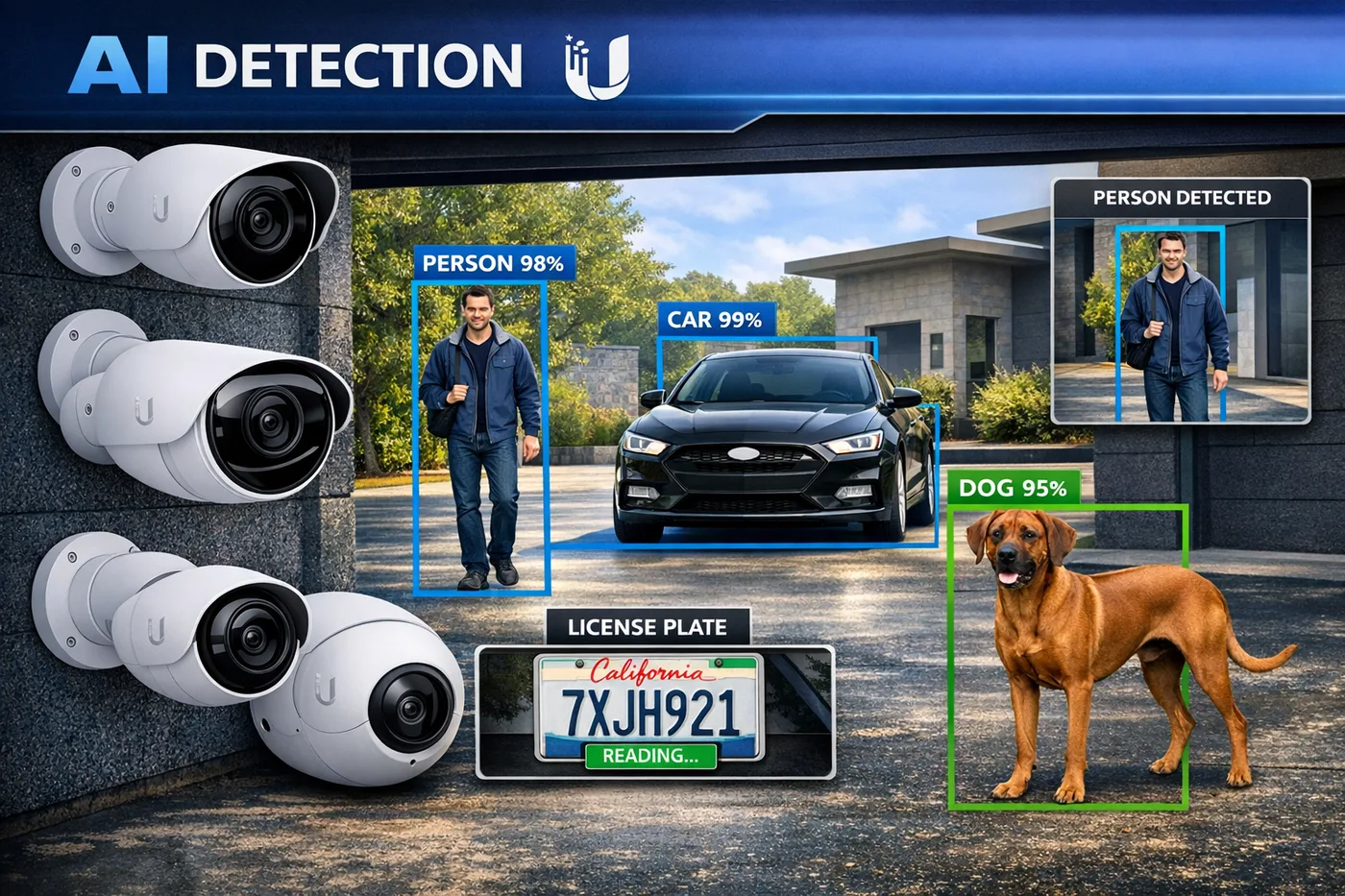
The other reason is the quality of Protect’s AI detection. Package detection, person detection, animal detection, vehicle detection, and barking detection are all surfaced as binary sensors directly in Home Assistant. Each camera gets its own sensor per detection type. That granularity is what makes every automation below possible.
Automation 1: Doorbell Ring — Rich Notification with Live Snapshot
This was the first automation I built after integrating the G4 Doorbell, and it immediately showed why UniFi is the right choice for this kind of setup.
What It Does
When the G4 Doorbell is pressed, both Kelly’s phone and mine get a push notification with a live snapshot from the front door camera attached. Tapping the notification opens directly to the front door camera view inside the Home Assistant companion app.
At the same time, two TTS announcements fire: one on the kitchen tablet, which covers the main floor, and one on the media room Sonos, which covers the basement. The speaker choice is deliberate — whoever is on either floor hears it without needing every speaker in the house to go off at once.
The key detail is how the snapshot is attached. Instead of saving an image to disk and pointing to a file path, this automation passes the camera’s entity_id directly in the notification payload. The iOS companion app fetches the image natively from your local HA instance when the notification arrives. No proxy URL, no file management, no intermediate step — and the image is as fresh as it can possibly be.
A Note on the YAML in This Article
Every code block below uses descriptive placeholders instead of my actual entity names. Anything in ALL_CAPS is something you need to replace with your own entity ID before pasting into Home Assistant.
For example: person.YOUR_NAME becomes my actual person entity in Home Assistant. media_player.YOUR_MAIN_FLOOR_SPEAKER becomes the entity ID for my kitchen tablet.
The easiest approach is to copy the YAML into a text editor, use Find and Replace to swap each placeholder for your real entity ID, then paste the result into the Home Assistant automation editor. Every placeholder appears consistently across all four automations, so one round of replacements covers the full set.
The Real YAML
alias: Doorbell - Notify YOUR_NAME & SPOUSE_NAME with Camera Snapshots
description: >
  When the front door doorbell rings: send a rich camera snapshot notification
  using entity_id attachment (no proxy URL) so iOS companion app fetches the
  image natively. Tapping opens directly to the front door camera.
mode: single
trigger:
  - platform: state
    entity_id: binary_sensor.front_door_doorbell
    to: "on"
action:
  - action: notify.mobile_app_YOUR_PHONE
    data:
      title: "🔔 Someone at the Front Door"
      message: "The doorbell just rang!"
      data:
        entity_id: camera.YOUR_DOORBELL_CAMERA
        url: "homeassistant://navigate/YOUR_CAMERA_DASHBOARD_PATH"
  - action: notify.mobile_app_SPOUSE_PHONE
    data:
      title: "🔔 Someone at the Front Door"
      message: "The doorbell just rang!"
      data:
        entity_id: camera.YOUR_DOORBELL_CAMERA
        url: "homeassistant://navigate/YOUR_CAMERA_DASHBOARD_PATH"
  - action: tts.speak
    data:
      cache: false
      media_player_entity_id: media_player.YOUR_MAIN_FLOOR_SPEAKER
      message: "Someone is at the front door."
    target:
      entity_id: tts.home_assistant_cloud
  - action: tts.speak
    data:
      cache: false
      media_player_entity_id: media_player.YOUR_BASEMENT_SPEAKER
      message: "Someone is at the front door."
    target:
      entity_id: tts.home_assistant_cloud
Why entity_id Instead of a File Snapshot
Most doorbell notification guides tell you to use camera.snapshot to save a JPEG to disk, then attach the file path in the notification data. That works, but it adds moving parts: the snapshot action has to complete before the notify actions run, the file has to exist on disk, and there’s no guarantee the image is current by the time the notification arrives on your phone.
Passing entity_id in the notification data skips all of that. The companion app requests the image directly from your local HA instance when the notification arrives. It’s simpler and fresher.
The url field in the notification data is what makes tapping the notification open the camera view directly. Swap the dashboard path for your own camera view, or remove the url field entirely if you don’t have a dedicated camera dashboard set up yet.
Automation 2: Package Delivery Alert with Visual Confirmation
This one came from a real problem. Packages were being left on the porch and I had no reliable way of knowing when they arrived, especially when I was working in my home office and Kelly was at school.
What It Does
When the G4 Doorbell detects a package on the front porch, three things happen:
- The current colour and brightness of both Voice PE LED rings are saved to helpers
- Both LED rings turn yellow as a persistent visual reminder
- The kitchen tablet announces that a package has arrived
When the package sensor clears, the automation restores both LED rings to exactly what they were before the alert fired.
A guard boolean (input_boolean.package_alert_package_currently_detected) prevents the restore sequence from running if the save never happened. Without it, a system restart mid-alert could cause the rings to try to restore from empty values.
The Real YAML
alias: Package Delivery - Front Door Alert
description: >
  When the Front Door camera detects a package: saves current RGB colour and
  brightness of both VA LED rings, turns both rings yellow, announces on Kitchen
  Tablet TTS, and sets a guard boolean. When package is no longer detected (only
  from 'on', ignoring unavailable transitions): restores both rings to saved
  colours/brightness and clears the guard boolean. Guard boolean prevents restore
  running if save never ran.
mode: restart
trigger:
  - platform: state
    entity_id: binary_sensor.front_door_package_detected
    to: "on"
    id: package_detected
  - platform: state
    entity_id: binary_sensor.front_door_package_detected
    from: "on"
    to: "off"
    for:
      seconds: 30
    id: package_gone
action:
  - choose:
      - conditions:
          - condition: trigger
            id: package_detected
        sequence:
          # Save current Office VA LED ring state
          - action: input_text.set_value
            data:
              value: >
                {{ state_attr('light.VOICE_PE_LOCATION1_LED_RING', 'rgb_color') | join(',')
                   if states('light.VOICE_PE_LOCATION1_LED_RING') == 'on' else '0,0,0' }}
            target:
              entity_id: input_text.package_alert_office_va_previous_rgb
          - action: input_number.set_value
            data:
              value: >
                {{ state_attr('light.VOICE_PE_LOCATION1_LED_RING', 'brightness') | int
                   if states('light.VOICE_PE_LOCATION1_LED_RING') == 'on' else 0 }}
            target:
              entity_id: input_number.package_alert_office_va_previous_brightness
          # Save current Master Bed VA LED ring state
          - action: input_text.set_value
            data:
              value: >
                {{ state_attr('light.VOICE_PE_LOCATION2_LED_RING', 'rgb_color') | join(',')
                   if states('light.VOICE_PE_LOCATION2_LED_RING') == 'on' else '0,0,0' }}
            target:
              entity_id: input_text.package_alert_master_bed_va_previous_rgb
          - action: input_number.set_value
            data:
              value: >
                {{ state_attr('light.VOICE_PE_LOCATION2_LED_RING', 'brightness') | int
                   if states('light.VOICE_PE_LOCATION2_LED_RING') == 'on' else 0 }}
            target:
              entity_id: input_number.package_alert_master_bed_va_previous_brightness
          # Set guard boolean and turn rings yellow
          - action: input_boolean.turn_on
            target:
              entity_id: input_boolean.package_alert_package_currently_detected
          - action: light.turn_on
            data:
              brightness: 255
              rgb_color: [255, 200, 0]
            target:
              entity_id:
                - light.VOICE_PE_LOCATION1_LED_RING
                - light.VOICE_PE_LOCATION2_LED_RING
          # Announce on kitchen tablet
          - action: tts.speak
            data:
              message: "A package has been delivered at the front door."
              media_player_entity_id: media_player.YOUR_MAIN_FLOOR_SPEAKER
            target:
              entity_id: tts.home_assistant_cloud

      - conditions:
          - condition: trigger
            id: package_gone
          - condition: state
            entity_id: input_boolean.package_alert_package_currently_detected
            state: "on"
        sequence:
          # Restore Office VA ring or turn off if it was off before
          - choose:
              - conditions:
                  - condition: numeric_state
                    entity_id: input_number.package_alert_office_va_previous_brightness
                    above: 0
                sequence:
                  - action: light.turn_on
                    data:
                      brightness: "{{ states('input_number.package_alert_office_va_previous_brightness') | int }}"
                      rgb_color:
                        - "{{ states('input_text.package_alert_office_va_previous_rgb').split(',')[0] | int }}"
                        - "{{ states('input_text.package_alert_office_va_previous_rgb').split(',')[1] | int }}"
                        - "{{ states('input_text.package_alert_office_va_previous_rgb').split(',')[2] | int }}"
                    target:
                      entity_id: light.VOICE_PE_LOCATION1_LED_RING
            default:
              - action: light.turn_off
                target:
                  entity_id: light.VOICE_PE_LOCATION1_LED_RING
          # Restore Master Bed VA ring or turn off if it was off before
          - choose:
              - conditions:
                  - condition: numeric_state
                    entity_id: input_number.package_alert_master_bed_va_previous_brightness
                    above: 0
                sequence:
                  - action: light.turn_on
                    data:
                      brightness: "{{ states('input_number.package_alert_master_bed_va_previous_brightness') | int }}"
                      rgb_color:
                        - "{{ states('input_text.package_alert_master_bed_va_previous_rgb').split(',')[0] | int }}"
                        - "{{ states('input_text.package_alert_master_bed_va_previous_rgb').split(',')[1] | int }}"
                        - "{{ states('input_text.package_alert_master_bed_va_previous_rgb').split(',')[2] | int }}"
                    target:
                      entity_id: light.VOICE_PE_LOCATION2_LED_RING
            default:
              - action: light.turn_off
                target:
                  entity_id: light.VOICE_PE_LOCATION2_LED_RING
          - action: input_boolean.turn_off
            target:
              entity_id: input_boolean.package_alert_package_currently_detected
Helpers Required
You’ll need these helpers created before the automation will work:
input_boolean.package_alert_package_currently_detectedinput_text.package_alert_office_va_previous_rgbinput_text.package_alert_master_bed_va_previous_rgbinput_number.package_alert_office_va_previous_brightness(min 0, max 255)input_number.package_alert_master_bed_va_previous_brightness(min 0, max 255)
The LED ring entity IDs will be specific to your Voice PE or Satellite hardware. Swap them for your own.
Automation 3: Backyard Security and Presence Awareness
The pool, deck, and side yard cameras aren’t just recording. They’re grouped together to give Home Assistant a single answer to a simple question: is anyone in the backyard right now?
The Group Sensor
I use a binary_sensor group called binary_sensor.person_in_backyard. It combines person detection from three cameras:
binary_sensor.pool_cam_person_detectedbinary_sensor.side_yard_360_person_detectedbinary_sensor.deck_person_detected
The group uses all: false, meaning it turns on when any one of the three fires and turns off only when all three have cleared. That single sensor powers multiple automations without each one needing to independently watch three separate triggers.
You create this under Settings > Helpers > Add Helper > Group. Select “Binary Sensor” as the type and add the three person detection sensors as members. Leave “All entities must be active” toggled off.
Intrusion Alert While Away (with Camera Snapshot)
When both Kelly and I are away and any backyard camera detects a person, both phones get a push notification with a snapshot from the camera that actually triggered. The automation uses a template variable to select the right camera based on which trigger fired, so the attached image always comes from the relevant angle.
alias: Alarm for Person in Backyard while away
description: >
  Alerts both phones when a person is detected in the backyard while nobody is home.
  Includes a snapshot from the camera that triggered the detection. Mode single + 5 min
  delay prevents duplicate notifications.
mode: single
variables:
  camera_entity: >
    {% if trigger.id == 'side_yard_360' %}
      camera.ai_360_high_resolution_channel
    {% elif trigger.id == 'pool_cam' %}
      camera.pool_cam_high_resolution_channel
    {% else %}
      camera.deck_high_resolution_channel
    {% endif %}
trigger:
  - platform: state
    entity_id: binary_sensor.side_yard_360_person_detected
    from: "off"
    to: "on"
    id: side_yard_360
  - platform: state
    entity_id: binary_sensor.pool_cam_person_detected
    from: "off"
    to: "on"
    id: pool_cam
  - platform: state
    entity_id: binary_sensor.deck_person_detected
    from: "off"
    to: "on"
    id: deck
condition:
  - condition: and
    conditions:
      - condition: not
        conditions:
          - condition: zone
            entity_id: person.YOUR_NAME
            zone: zone.home
      - condition: not
        conditions:
          - condition: state
            entity_id: person.SPOUSE_NAME
            state: home
action:
  - action: camera.snapshot
    data:
      filename: /tmp/backyard_alarm.jpg
    target:
      entity_id: "{{ camera_entity }}"
  - action: notify.mobile_app_YOUR_PHONE
    data:
      title: "Alarm: Person in Backyard"
      message: "Person spotted in Backyard while you are not home!"
      data:
        image: /tmp/backyard_alarm.jpg
  - action: notify.mobile_app_SPOUSE_PHONE
    data:
      title: "Alarm: Person in Backyard"
      message: "Person spotted in Backyard while you are not home!"
      data:
        image: /tmp/backyard_alarm.jpg
  - delay:
      minutes: 5
The 5-minute delay at the end is intentional. With mode: single, the automation won’t retrigger while it’s already running. This acts as a built-in cooldown without needing a separate timer helper.
Lights and Music Auto-Off at End of Night
When nobody has been detected in the backyard for 30 continuous minutes and the back door is locked, the backyard lights turn off and the deck and pool patio Sonos speakers pause automatically.
The locked door condition matters. If someone steps inside briefly and the presence sensor clears, the door being unlocked tells the automation that someone may still be out there. The automation only fires when the door is locked, confirming the last person is in for the night.
alias: Backyard Lights and Music Auto Off after Nobody present for 30m
description: >
  Turns off all backyard lights and pauses outdoor speakers when no person is
  detected in the backyard for 30 continuous minutes. Only runs if the lights
  are actually on or any outdoor speaker is actively playing, AND the back door
  is locked (meaning everyone is back inside).
mode: single
trigger:
  - platform: state
    entity_id: binary_sensor.person_in_backyard
    to: "off"
    for:
      minutes: 30
condition:
  - condition: state
    entity_id: lock.YOUR_BACK_DOOR
    state: locked
  - condition: or
    conditions:
      - condition: state
        entity_id: light.all_backyard_lights
        state: "on"
      - condition: state
        entity_id: media_player.YOUR_DECK_SPEAKER
        state: playing
      - condition: state
        entity_id: media_player.YOUR_POOL_SPEAKER
        state: playing
action:
  - action: light.turn_off
    target:
      entity_id: light.all_backyard_lights
  - action: media_player.media_pause
    target:
      entity_id:
        - media_player.YOUR_DECK_SPEAKER
        - media_player.YOUR_POOL_SPEAKER
Automation 4: Clarke Barking Alert
Clarke is our dog. He goes outside through the kitchen back door when someone lets him out. If he starts barking, I want to know — but I also want the automation to be smart enough to confirm he was actually outside first.
The Verification Step
Before any notification fires, the automation runs a template condition that checks whether any backyard camera’s animal sensor triggered after the back door was last opened. If no animal detection happened since the door last opened, the alert skips entirely. This prevents false positives from a neighbour’s dog or ambient noise.
Presence-Aware Routing
Once Clarke is confirmed to be outside and barking, the automation branches based on who is home: both away sends to both phones, only one person home gets a kitchen TTS announcement plus their phone, and both home gets TTS plus both phones.
The notification uses a persistent tag so it auto-clears from both phones once the barking has been gone for 30 seconds.
alias: YOUR_PET_NAME Barking - Alert and Announce
description: >
  When the barking detection sensor triggers between 7am–10pm: first confirms
  YOUR_PET_NAME was actually let outside (animal sensor fired since the back door
  last opened). Then branches on presence: both away → notify both phones; only
  one home → main floor TTS + that person's phone; both home → main floor TTS +
  both phones. Sends a persistent notification that auto-clears once barking has
  been gone for 30 seconds.
mode: single
trigger:
  - platform: state
    entity_id: binary_sensor.side_yard_360_barking_detected
    to: "on"
condition:
  - condition: time
    after: "07:00:00"
    before: "22:00:00"
action:
  # Confirm YOUR_PET_NAME was outside when barking started
  - alias: YOUR_PET_NAME must have been outside since back door last opened
    condition: template
    value_template: >
      {% set door_last_opened = states.binary_sensor.YOUR_BACK_DOOR_CONTACT_SENSOR.last_changed %}
      {% set animal_sensors = [
        states.binary_sensor.deck_animal_detected,
        states.binary_sensor.pool_cam_animal_detected,
        states.binary_sensor.side_yard_360_animal_detected
      ] %}
      {{ animal_sensors | selectattr('last_changed', '>', door_last_opened) | list | count > 0 }}

  - alias: Branch on who is home
    choose:
      - alias: Both YOUR_NAME and SPOUSE_NAME are away
        conditions:
          - condition: not
            conditions:
              - condition: state
                entity_id: person.YOUR_NAME
                state: home
          - condition: not
            conditions:
              - condition: state
                entity_id: person.SPOUSE_NAME
                state: home
        sequence:
          - action: notify.mobile_app_YOUR_PHONE
            data:
              title: YOUR_PET_NAME Alert
              message: "YOUR_PET_NAME is barking outside!"
              data:
                tag: YOUR_PET_NAME_barking
          - action: notify.mobile_app_SPOUSE_PHONE
            data:
              title: YOUR_PET_NAME Alert
              message: "YOUR_PET_NAME is barking outside!"
              data:
                tag: YOUR_PET_NAME_barking

      - alias: Only YOUR_NAME is home
        conditions:
          - condition: state
            entity_id: person.YOUR_NAME
            state: home
          - condition: not
            conditions:
              - condition: state
                entity_id: person.SPOUSE_NAME
                state: home
        sequence:
          - action: tts.speak
            data:
              media_player_entity_id: media_player.YOUR_MAIN_FLOOR_SPEAKER
              message: YOUR_PET_NAME is barking outside.
            target:
              entity_id: tts.home_assistant_cloud
          - action: notify.mobile_app_YOUR_PHONE
            data:
              title: YOUR_PET_NAME Alert
              message: "YOUR_PET_NAME is barking outside!"
              data:
                tag: YOUR_PET_NAME_barking

      - alias: Only SPOUSE_NAME is home
        conditions:
          - condition: state
            entity_id: person.SPOUSE_NAME
            state: home
          - condition: not
            conditions:
              - condition: state
                entity_id: person.YOUR_NAME
                state: home
        sequence:
          - action: tts.speak
            data:
              media_player_entity_id: media_player.YOUR_MAIN_FLOOR_SPEAKER
              message: YOUR_PET_NAME is barking outside.
            target:
              entity_id: tts.home_assistant_cloud
          - action: notify.mobile_app_SPOUSE_PHONE
            data:
              title: YOUR_PET_NAME Alert
              message: "YOUR_PET_NAME is barking outside!"
              data:
                tag: YOUR_PET_NAME_barking

      - alias: Both YOUR_NAME and SPOUSE_NAME are home
        conditions:
          - condition: state
            entity_id: person.YOUR_NAME
            state: home
          - condition: state
            entity_id: person.SPOUSE_NAME
            state: home
        sequence:
          - action: tts.speak
            data:
              media_player_entity_id: media_player.YOUR_MAIN_FLOOR_SPEAKER
              message: YOUR_PET_NAME is barking outside.
            target:
              entity_id: tts.home_assistant_cloud
          - action: notify.mobile_app_YOUR_PHONE
            data:
              title: YOUR_PET_NAME Alert
              message: "YOUR_PET_NAME is barking outside!"
              data:
                tag: YOUR_PET_NAME_barking
          - action: notify.mobile_app_SPOUSE_PHONE
            data:
              title: YOUR_PET_NAME Alert
              message: "YOUR_PET_NAME is barking outside!"
              data:
                tag: YOUR_PET_NAME_barking

  # Wait up to 1 hour for barking to stop, then clear the notification
  - alias: Wait for barking to stop
    wait_for_trigger:
      - platform: state
        entity_id: binary_sensor.side_yard_360_barking_detected
        to: "off"
        for:
          seconds: 30
    timeout:
      hours: 1
    continue_on_timeout: true

  - alias: Clear notification from both phones
    parallel:
      - action: notify.mobile_app_YOUR_PHONE
        data:
          message: clear_notification
          data:
            tag: YOUR_PET_NAME_barking
      - action: notify.mobile_app_SPOUSE_PHONE
        data:
          message: clear_notification
          data:
            tag: YOUR_PET_NAME_barking
The continue_on_timeout: true on the wait step means if YOUR_PET_NAME is still going an hour later, the automation finishes anyway and clears the notification. It also means the automation can retrigger on the next barking event rather than hanging open indefinitely.
Note on the notification tag: The
tag: YOUR_PET_NAME_barkingvalue must be a single string with no spaces. When you replaceYOUR_PET_NAME, use lowercase and underscores — for exampletag: clarke_barking. The tag value must match exactly across the notify and clear steps, so find and replace handles this correctly as long as you’re consistent.
What’s Coming Next: Licence Plate and Driveway Tracking
I’m upgrading my garage and driveway cameras sometime mid-to-late summer — pending the final stage of any significant home tech purchase, which is spouse approval. Camera model is still TBD.
The goal is to add licence plate detection to my presence logic. Right now I rely on phone-based geofencing to know when our cars leave and come home. It works well, but there are edge cases: a phone left in a car, geofencing lag when arriving, or the car leaving without the phone. Pairing licence plate detection with phone presence gives me a double confirmation that my specific car is home — not just someone else’s vehicle pulling into the street.
Since the cameras only cover my own driveway, the only plates being read are ours. The detection stays local and the use case is genuinely practical: know when either car left, confirm I actually departed and didn’t just leave my phone behind, and trigger arrival automations only when my car physically crosses into the driveway.
The other thing I want to build alongside this is known-person recognition. When family or friends we see regularly pull up, I want a different kind of alert — not “unknown vehicle detected” but “my in-laws are here” announced on the relevant speakers, or a notification that uses their name. The camera system and Home Assistant together make that possible. It’s a meaningful step up from a generic motion alert.
I’ll document the full setup once the cameras are in and the automations have had time to prove themselves. I won’t write it until I’ve lived with it.
The Integration You Need
If you’re running UniFi Protect and haven’t connected it to Home Assistant yet, the integration is in the core integrations list. Go to Settings > Devices & Services > Add Integration and search for “UniFi Protect.” You’ll need your UniFi console’s local IP address and a local account (not your Ubiquiti cloud account). The integration will pull in all your cameras and their AI detection sensors automatically.
From there, the entities you’ll be working with follow a consistent naming pattern:
binary_sensor.[camera_name]_person_detectedbinary_sensor.[camera_name]_package_detectedbinary_sensor.[camera_name]_animal_detectedbinary_sensor.[camera_name]_barking_detectedbinary_sensor.[camera_name]_vehicle_detected
Each one is a standard binary sensor you can use as a trigger, condition, or state check in any automation. This is the kind of integration that changes how you think about what a security camera actually is. They’re not recorders. They’re sensors.
Smart Home Secrets is reader-supported. We may earn a commission if you buy through our links.