
📅 Published: April 2026 | ✍️ By Brad Andrews | ⏱️ 9 min read
There is a moment every morning, usually somewhere around the first sip of my Americano, where I need to know three things. What is the weather doing today. My workday comes next. And what does my family need from me tonight.
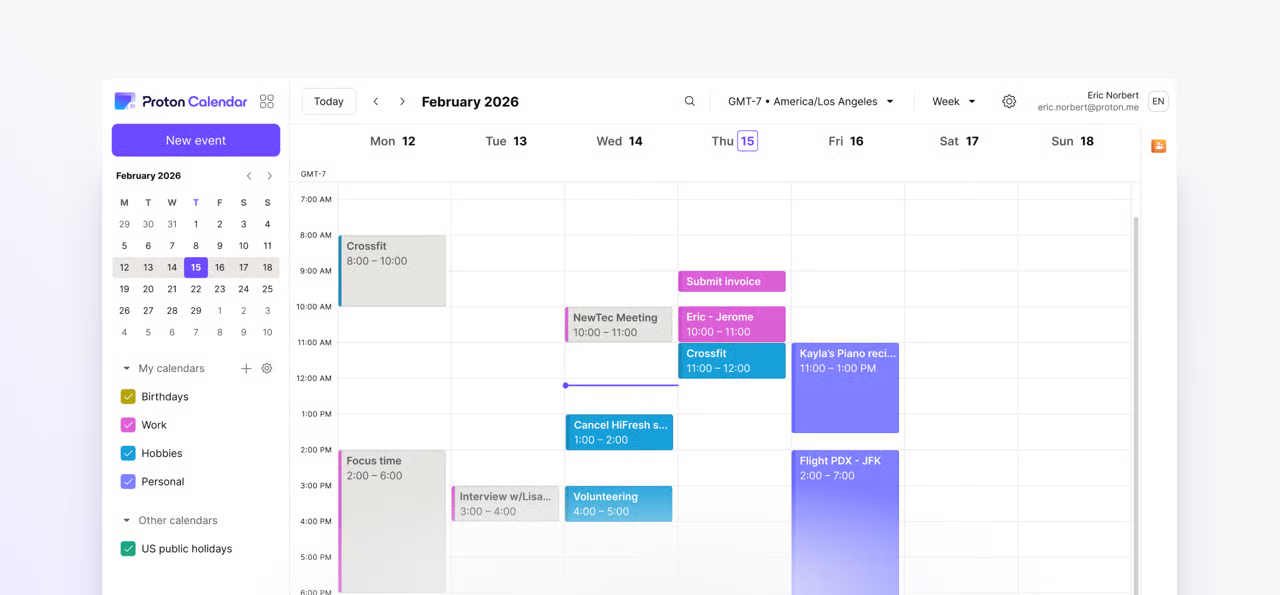
For years those three questions lived across four different apps. Weather on my phone. Work calendar in Outlook. Kelly’s schedule in Proton. The kids’ activities and my rec sports leagues each on their own platform.
Getting all of that into Home Assistant changed how I start every day. One dashboard, one glance, everything in context. This is how I built it.
What Is an ICS URL?
Before we get into setup, it helps to understand the format that makes all of this work.
ICS stands for iCalendar. It is an open standard for calendar data that has been around since 1998. Every major calendar service supports it. Proton Calendar, Google Calendar, Microsoft 365, Apple Calendar, and most recreational sports league platforms can all generate a URL pointing to a live ICS feed for any given calendar.
That URL returns a plain text file containing your calendar events. Home Assistant reads it and creates a calendar entity from it. You get one entity per calendar, each one showing the next upcoming event as its state, with all events visible in the HA calendar dashboard.
The key requirement is that the URL must be publicly accessible without authentication. This is a current limitation of the Remote Calendar integration. It does not support credentials or special headers. Every ICS URL you use needs to be a shareable link that anyone with the URL can read.
This sounds like a privacy concern, and it is worth thinking about. The URL itself acts as your access control. Treat it like a password. Do not share it publicly, and regenerate it if you think it has been compromised.
Which Calendar Providers Work
Any provider that generates a shareable ICS URL will work. Here is what I run and how to get the URL from each one.
Proton Calendar
Proton Calendar supports ICS sharing per calendar. Since I run the full Proton Calendar setup across our household, most of my personal and family calendars live here.
To get your ICS URL from Proton Calendar:
- Go to calendar.proton.me and open Settings
- Navigate to All settings and select Calendars
- Find the calendar you want to share and click on it
- Under the Share with anyone section, click Create a link
- Copy the ICS link that appears
Repeat this for each calendar you want in Home Assistant. I have separate Proton calendars for personal events, family activities, and Kelly’s schedule. Each one gets its own ICS URL and becomes its own entity in HA.

Microsoft 365
Microsoft 365 supports ICS sharing through Outlook on the web.
To get your ICS URL from Microsoft 365:
- Go to outlook.office.com and click the gear icon in the top right to open Settings
- Select Calendar and then choose Shared Calendars
- Under the Publish a calendar section, click the calendar dropdown and select the calendar you want to share
- In the permissions dropdown, choose Can view all details (or Can view titles and locations for less detail)
- Click Publish and copy the ICS link that appears
The Microsoft Timezone Trap
If you have added calendar events while travelling in a timezone different from your home timezone, there is a real chance those entries have corrupted timezone data in the ICS export. Microsoft has a known issue where events created in certain timezone configurations do not save the timezone correctly.
I ran into this myself. Three calendar entries from a work trip had malformed timezone data. Home Assistant’s Remote Calendar integration failed to import my entire work calendar because of them. The logs only flagged one corrupt entry at a time, so fixing it meant checking the logs, opening that event in Outlook, editing it, manually setting the timezone, saving, and retrying. Three rounds total before the calendar loaded cleanly.
The fix is straightforward once you know to look for it. Open Settings, then System, then Logs in Home Assistant and look for the Remote Calendar error. It will name the exact event causing the problem. Edit that event in Outlook, set the timezone manually, and save. Repeat until the calendar loads without errors.
Google Calendar
Here you have 2 options to bring Google Calendar into Home Assistant:
1) The Official Google Calendar integration
2) Using an ICS URL from Google Calendar:
- Open calendar.google.com and find your calendar in the left sidebar
- Click the three dots next to the calendar name and choose Settings and sharing
- Scroll down to Integrate calendar
- Copy the Secret address in iCal format link
Use the secret address, not the public iCal link. It includes your private events. The public link only shows events you have explicitly marked as public.
Other Providers
Any service that exposes a webcal or ICS URL works the same way. My recreational sports leagues publish team schedules as ICS feeds directly from their league management platforms. My Dodgeball league in fall and winter, my Baseball league in summer. Both added the same way as everything else. One entity per league, all upcoming games and practice times, no manual entry required.
If your provider uses a webcal:// URL prefix instead of https://, swap webcal:// for https:// when you paste it into Home Assistant. They point to the same data.
Setting Up the Remote Calendar Integration
The Remote Calendar integration is built into Home Assistant as of version 2025.4. You do not need HACS for this one. If you are running anything recent, it is already available.
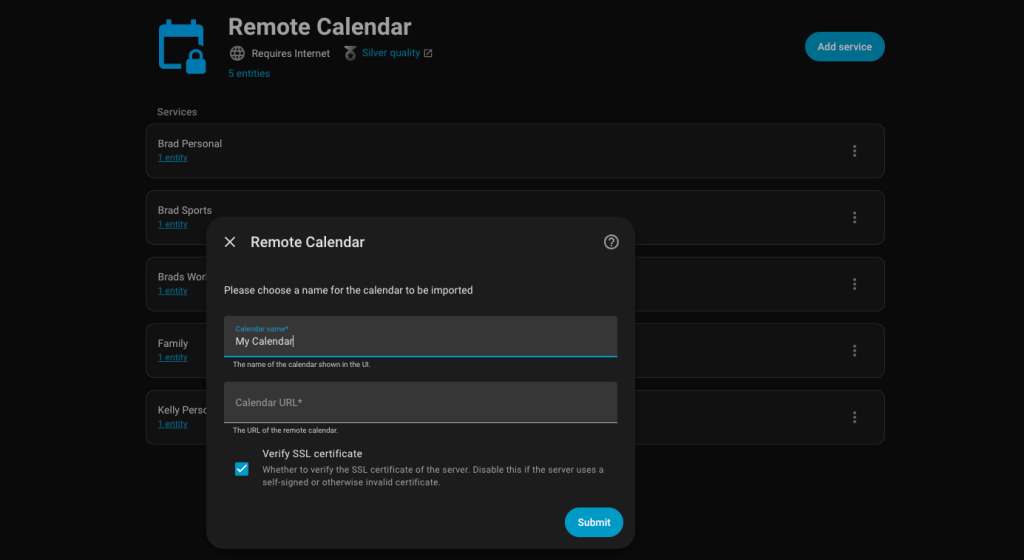
You add one instance of the integration per calendar. Each instance creates one calendar entity in HA.
To add a calendar:
- Go to Settings and select Devices and Services
- Click Add Integration and search for Remote Calendar
- Give the calendar a descriptive name. This becomes the entity name, so be specific (for example: Work, Family, Sports)
- Paste your ICS URL into the Calendar URL field
- Leave Verify SSL certificate enabled unless you have a specific reason not to
- Click Submit
Repeat for every calendar you want to add. I run five: Work, Personal, Family, Spouse’s Calendar, and Sports. Each is its own entity.
The 24-Hour Polling Limit
One thing worth knowing before you build automations on this data: Remote Calendar polls for updates every 24 hours by default. It does not refresh in real time.
For a morning briefing dashboard this is fine. Events rarely change between midnight and 7am. For automations that need to react to same-day changes, set up a manual refresh that runs before your briefing fires.
Disable the default polling on the integration, then create this automation to force a refresh at 6:45am, fifteen minutes before the briefing runs at 7am.
yaml
alias: "Refresh All Calendars Before Morning Briefing"
description: >-
  Refreshes all Remote Calendar entities at 6:45am so the 7am
  briefing automation always has current data.

triggers:
  - platform: time
    at: "06:45:00"

actions:
  - action: homeassistant.update_entity
    target:
      entity_id:
        - calendar.YOURNAME_work
        - calendar.YOURNAME_personal
        - calendar.family
        - calendar.SPOUSENAME_personal
        - calendar.YOURNAME_sports

mode: single
Placeholders: Replace YOURNAME and SPOUSENAME with your names as they appear in your entity IDs. Add or remove calendars to match your own setup.
The Morning Briefing Automations
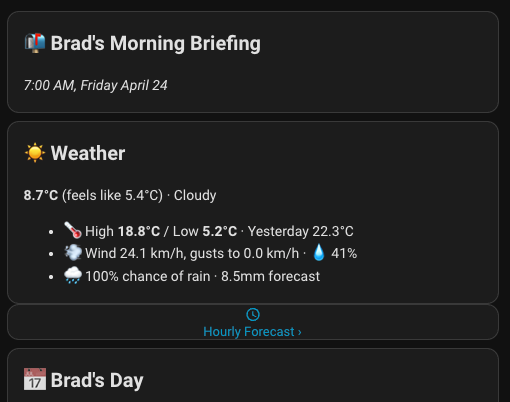
Here is where the calendar data starts doing real work. Two automations fire every morning at 7am. One builds my digest, the other builds Kelly’s. Each one fetches the day’s events from all relevant calendars, sends the data to Claude via the conversation agent to generate a personalised summary and Daily Spark, and stores everything as attributes on a sensor. Those sensors power the Messages dashboard.
The key action is calendar.get_events. It fetches all events for a given time window from one or more calendar entities and returns structured data you can pass to templates, Claude, or any other action in the sequence.
Your Morning Briefing Automation
yaml
alias: "YOURNAME Daily Morning Briefing"
description: >-
  Fires at 7am daily. Pre-fetches all calendar events for the day.
  Uses Claude to generate the Daily Spark. Stores spark and calendar
  events on sensor.YOURNAME_daily_digest.

triggers:
  - platform: time
    at: "07:00:00"

actions:

  # Step 1: Fetch today's events from all calendars
  - action: calendar.get_events
    continue_on_error: true
    data:
      start_date_time: "{{ now().strftime('%Y-%m-%d') }}T00:00:00"
      end_date_time: "{{ now().strftime('%Y-%m-%d') }}T23:59:59"
    response_variable: cal_events
    target:
      entity_id:
        - calendar.YOURNAME_work
        - calendar.YOURNAME_personal
        - calendar.YOURNAME_sports
        - calendar.family
        - calendar.SPOUSENAME_personal

  # Step 2: Flatten each calendar's events into pipe-delimited strings
  - variables:
      work_events: >-
        {% set ns = namespace(rows=[]) %}
        {% for e in cal_events.get('calendar.YOURNAME_work', {}).get('events', []) %}
          {% set ns.rows = ns.rows + [e.start ~ '|' ~ e.summary] %}
        {% endfor %}
        {{ ns.rows | join(',,') }}
      personal_events: >-
        {% set ns = namespace(rows=[]) %}
        {% for e in cal_events.get('calendar.YOURNAME_personal', {}).get('events', []) %}
          {% set ns.rows = ns.rows + [e.start ~ '|' ~ e.summary] %}
        {% endfor %}
        {{ ns.rows | join(',,') }}
      sports_events: >-
        {% set ns = namespace(rows=[]) %}
        {% for e in cal_events.get('calendar.YOURNAME_sports', {}).get('events', []) %}
          {% set ns.rows = ns.rows + [e.start ~ '|' ~ e.summary] %}
        {% endfor %}
        {{ ns.rows | join(',,') }}
      family_events: >-
        {% set ns = namespace(rows=[]) %}
        {% for e in cal_events.get('calendar.family', {}).get('events', []) %}
          {% set ns.rows = ns.rows + [e.start ~ '|' ~ e.summary] %}
        {% endfor %}
        {{ ns.rows | join(',,') }}
      spouse_events: >-
        {% set ns = namespace(rows=[]) %}
        {% for e in cal_events.get('calendar.SPOUSENAME_personal', {}).get('events', []) %}
          {% set ns.rows = ns.rows + [e.start ~ '|' ~ e.summary] %}
        {% endfor %}
        {{ ns.rows | join(',,') }}

  # Step 3: Ask Claude to generate the Daily Spark
  - action: conversation.process
    data:
      agent_id: conversation.claude_conversation
      text: >-
        Generate today's Daily Spark for YOURNAME's morning briefing.
        All data is self-contained. Do not ask for anything, do not call
        any tools, respond with the Spark text only.

        Today is {{ now().strftime('%A, %B %-d, %Y') }}.
        Day of year: {{ now().timetuple().tm_yday }}.

        Use (day_of_year mod 4) to pick the type:
        0 = joke, 1 = fun fact, 2 = today in history, 3 = quote.

        Rules: Jokes must be genuinely funny. Fun facts must include a
        number or striking contrast. Today in history must name the year.
        Quotes must be thought-provoking or witty, not generic.

        Do NOT label the type. Output only the Spark content itself.
    response_variable: spark_response

  # Step 4: Store everything on the digest sensor
  - action: variable.set_entity
    alias: "Store spark, generated time, and all calendar events"
    data:
      entity: sensor.YOURNAME_daily_digest
      value: ready
      replace_attributes: true
      attributes:
        generated_at: "{{ now().strftime('%-I:%M %p, %A %B %-d') }}"
        spark: "{{ spark_response.response.speech.plain.speech }}"
        work_events: "{{ work_events }}"
        personal_events: "{{ personal_events }}"
        sports_events: "{{ sports_events }}"
        family_events: "{{ family_events }}"
        spouse_events: "{{ spouse_events }}"

  # Step 5: Push notification linking to the dashboard
  - action: notify.mobile_app_YOURPHONE
    alias: "Send iOS push to Messages dashboard"
    data:
      title: "Good Morning, YOURNAME ☀️"
      message: "Your daily digest is ready — tap to read."
      data:
        tag: YOURNAME_daily_digest
        sticky: "false"
        url: "homeassistant://navigate/daily-messages"
        actions:
          - action: URI
            title: Open Digest
            uri: "homeassistant://navigate/daily-messages"

mode: single
Placeholders to replace:
YOURNAMEthroughout with your name as it appears in entity IDsSPOUSENAMEwith your spouse’s nameYOURPHONEwith your phone’s notify service name (find it under Settings, Companion App)conversation.claude_conversationwith your conversation agent entity ID if different
Spouse’s Morning Briefing Automation
The second automation runs the same flow for Kelly, with one addition: it asks Claude for a personalised extra section alongside the Daily Spark. In our case, that is a classroom idea for an elementary school teacher, rotating through subject areas across the week. It takes seconds to generate and Kelly reads it every morning.
If your spouse has a different profession or interest, customise the Step 3 prompt accordingly. The pattern works for anything.
yaml
alias: "SPOUSENAME Daily Morning Briefing"
description: >-
  Fires at 7am daily. Pre-fetches calendar events. Uses Claude to
  generate the Daily Spark and a personalised section. Stores results
  on sensor.SPOUSENAME_daily_digest.

triggers:
  - platform: time
    at: "07:00:00"

actions:

  # Step 1: Fetch today's events
  - action: calendar.get_events
    continue_on_error: true
    data:
      start_date_time: "{{ now().strftime('%Y-%m-%d') }}T00:00:00"
      end_date_time: "{{ now().strftime('%Y-%m-%d') }}T23:59:59"
    response_variable: cal_events
    target:
      entity_id:
        - calendar.SPOUSENAME_personal
        - calendar.family
        - calendar.YOURNAME_personal
        - calendar.YOURNAME_sports

  # Step 2: Flatten calendar events
  - variables:
      spouse_events: >-
        {% set ns = namespace(rows=[]) %}
        {% for e in cal_events.get('calendar.SPOUSENAME_personal', {}).get('events', []) %}
          {% set ns.rows = ns.rows + [e.start ~ '|' ~ e.summary] %}
        {% endfor %}
        {{ ns.rows | join(',,') }}
      family_events: >-
        {% set ns = namespace(rows=[]) %}
        {% for e in cal_events.get('calendar.family', {}).get('events', []) %}
          {% set ns.rows = ns.rows + [e.start ~ '|' ~ e.summary] %}
        {% endfor %}
        {{ ns.rows | join(',,') }}
      your_personal_events: >-
        {% set ns = namespace(rows=[]) %}
        {% for e in cal_events.get('calendar.YOURNAME_personal', {}).get('events', []) %}
          {% set ns.rows = ns.rows + [e.start ~ '|' ~ e.summary] %}
        {% endfor %}
        {{ ns.rows | join(',,') }}
      your_sports_events: >-
        {% set ns = namespace(rows=[]) %}
        {% for e in cal_events.get('calendar.YOURNAME_sports', {}).get('events', []) %}
          {% set ns.rows = ns.rows + [e.start ~ '|' ~ e.summary] %}
        {% endfor %}
        {{ ns.rows | join(',,') }}

  # Step 3: Ask Claude for Spark + personalised section
  # Customise the personalised section prompt for your spouse's role or interests
  - action: conversation.process
    data:
      agent_id: conversation.claude_conversation
      text: >-
        Generate two sections for SPOUSENAME's morning briefing. Do not
        ask for anything, do not call any tools, respond with only the
        two sections.

        Today is {{ now().strftime('%A, %B %-d, %Y') }}.
        Day of year: {{ now().timetuple().tm_yday }}.

        ## Daily Spark
        Use (day_of_year mod 4): 0=joke, 1=fun fact, 2=today in history,
        3=quote. Same quality rules. Do NOT label the type.

        ## Personalised Section
        [Replace this with a prompt relevant to your spouse.
        Example for an elementary teacher: suggest one classroom activity
        for today, rotating through subject areas, 2-3 sentences, age-appropriate.
        Example for a fitness coach: suggest one new exercise or drill
        to try with clients this week.]

        Format as exactly two markdown sections using the headings above.
    response_variable: agent_response

  # Step 4: Store on digest sensor
  - action: variable.set_entity
    alias: "Store spark, personalised section, and calendar events"
    data:
      entity: sensor.SPOUSENAME_daily_digest
      value: ready
      replace_attributes: true
      attributes:
        generated_at: "{{ now().strftime('%-I:%M %p, %A %B %-d') }}"
        spark_and_extra: "{{ agent_response.response.speech.plain.speech }}"
        spouse_events: "{{ spouse_events }}"
        family_events: "{{ family_events }}"
        your_personal_events: "{{ your_personal_events }}"
        your_sports_events: "{{ your_sports_events }}"

  # Step 5: Push notification
  - action: notify.mobile_app_SPOUSEPHONE
    alias: "Send push to Messages dashboard"
    data:
      title: "Good Morning, SPOUSENAME ☀️"
      message: "Your daily digest is ready — tap to read."
      data:
        tag: SPOUSENAME_daily_digest
        sticky: "false"
        url: "homeassistant://navigate/daily-messages"
        actions:
          - action: URI
            title: Open Digest
            uri: "homeassistant://navigate/daily-messages"

mode: single
Placeholders to replace:
SPOUSENAMEthroughout with your spouse’s name as it appears in entity IDsYOURNAMEwith your nameSPOUSEPHONEwith your spouse’s phone notify service name- Customise the Step 3 prompt for whatever personalised section fits your household
The Messages Dashboard
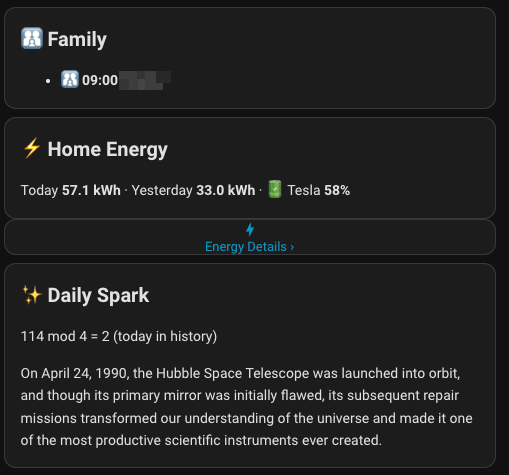
The dashboard pulls all its data from the sensor attributes the briefing automations store. The layout is user-conditional. Kelly’s view and my view show different calendar sections based on who is logged in. The weather block, energy cards, and Daily Spark are shared between both views.
Each person’s view shows three calendar sections. Your day comes first: work meetings, personal events, and sports all sorted by time with different icons. Family events come next from the shared calendar, covering the kids’ activities from Girl Guides and tap dance to soccer, baseball, and karate. A third section flags evening commitments from your spouse’s calendar so you can plan around each other. If Kelly has something Tuesday evening, my view tells me to plan accordingly. If I have a Dodgeball game Wednesday night, her view flags it.
Here is the core dashboard template pattern for reading stored calendar attributes and rendering a sorted event list:
yaml
type: markdown
content: >-
  ## 📅 Your Day
  {% set work_raw = state_attr('sensor.YOURNAME_daily_digest', 'work_events') %}
  {% set personal_raw = state_attr('sensor.YOURNAME_daily_digest', 'personal_events') %}
  {% set sports_raw = state_attr('sensor.YOURNAME_daily_digest', 'sports_events') %}
  {% set ns = namespace(events=[]) %}

  {% if work_raw %}
    {% for e in work_raw.split(',,') %}
      {% set parts = e.split('|') %}
      {% if parts | length == 2 %}
        {% set t = parts[0][11:16] if parts[0] | length > 10 else 'All day' %}
        {% set ns.events = ns.events + [{'t': t, 'name': parts[1], 'icon': '💼'}] %}
      {% endif %}
    {% endfor %}
  {% endif %}

  {% if personal_raw %}
    {% for e in personal_raw.split(',,') %}
      {% set parts = e.split('|') %}
      {% if parts | length == 2 %}
        {% set t = parts[0][11:16] if parts[0] | length > 10 else 'All day' %}
        {% set ns.events = ns.events + [{'t': t, 'name': parts[1], 'icon': '🗓️'}] %}
      {% endif %}
    {% endfor %}
  {% endif %}

  {% if sports_raw %}
    {% for e in sports_raw.split(',,') %}
      {% set parts = e.split('|') %}
      {% if parts | length == 2 %}
        {% set t = parts[0][11:16] if parts[0] | length > 10 else 'All day' %}
        {% set ns.events = ns.events + [{'t': t, 'name': parts[1], 'icon': '🏆'}] %}
      {% endif %}
    {% endfor %}
  {% endif %}

  {% if ns.events | length > 0 %}
    {% for e in ns.events | sort(attribute='t') %}
  - {{ e.icon }} **{{ e.t }}** {{ e.name }}
    {% endfor %}
  {% else %}
  *No events today*
  {% endif %}
The ,, delimiter separates events and | separates the timestamp from the event name. The template parses each event, assigns an icon by calendar type, sorts everything by time, and renders the list. Replace sensor.YOURNAME_daily_digest with your own sensor entity name.
Below the calendar sections, an energy card shows today’s consumption so far, yesterday’s total, estimated hydro cost, Tesla charge level, and last charge session cost. The Daily Spark sits at the bottom of each person’s view.
What Comes Next
With your calendars in Home Assistant you have a data source that can do a lot more than power a dashboard. Calendar data can drive presence conditions, suppress notifications on holidays, tell your home what kind of day is ahead before anyone wakes up, and flag when someone needs to be home earlier than usual.
In Blueprint #6: Presence Detection, we will cover how calendar state layers with geofencing to build automations that understand context, not just location.
Smart Home Secrets is reader-supported. We may earn a commission if you buy through our links.