📅 Published: May 2026 | ✍️ By Brad Andrews | ⏱️ 5 min read
Google Home seems a little lost post Nest shutdown and Amazon has great hardware options, but both are pushing subscriptions or ads. They do not let you customize your content, or even keep it local and private which is not great. You should have the freedom to display your family calendar or your work ones as you please without sharing that sensitive information with anyone but your family. The same goes for managing kids chores, live camera feeds, AI generated briefings, you name it you can display it and keep it private too.
This is the power of Home Assistant and dashboards are a blank canvas that is wide open for you to explore, create, build, break and rebuild. You are in control all the time and the hub becomes a central point of your family’s day and even lives.
What’s in the Repo
So far I have 2 dashboards to share with you. I did sanitize them somewhat to make it both easier for you to find and replace entity names while also juggling a bit of my family privacy. Full disclosure here I did also use AI to help document these to make them easier to read and follow along, including the README files, so thanks Claude!
→ Smart Home Secrets on GitHub
Tab Kitchen
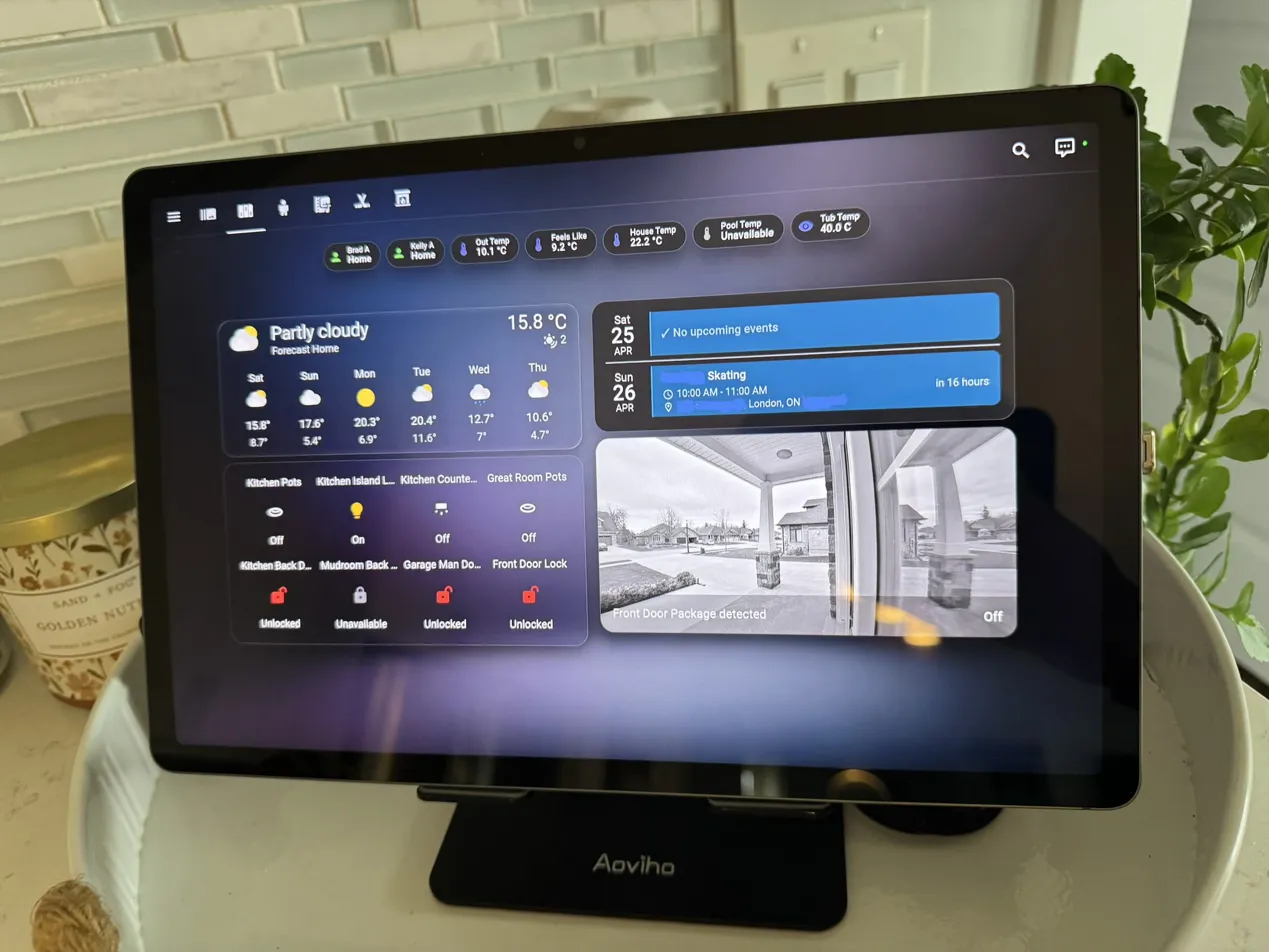
This is the main kitchen tablet dashboard, the one running on the wall-mounted display in my kitchen. It covers everything I want visible at a glance without opening an app.
Seven views are included:
- Photos: a full-screen Immich Frame iframe, cycling through our photo library
- Home: weather forecast, one-tap light and lock controls, family calendar, and the front door package detection camera
- Kids Chores: time-aware task cards via Taskmate that automatically show morning, afternoon, or evening tasks depending on the time
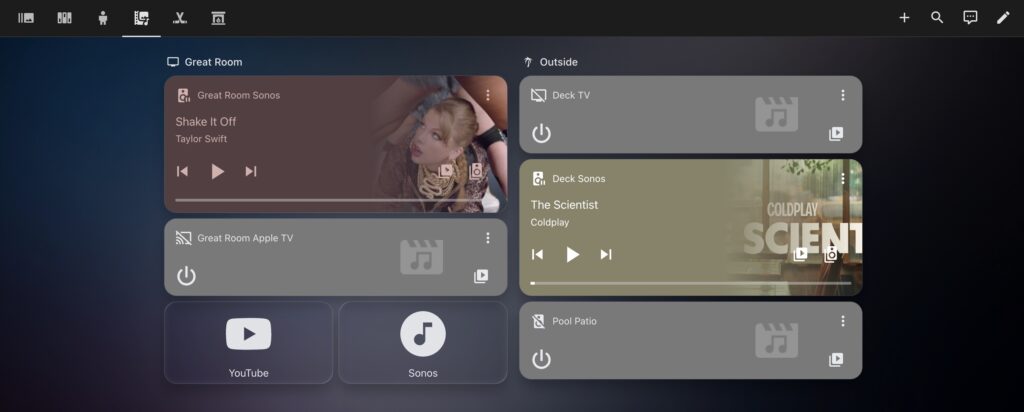
- Media: Sonos and Apple TV controls for the great room and outdoor zones
- Sports: live game scores via TeamTracker
- HVAC: thermostat, Dyson fan, and fireplace tile in one place
- Cameras: full-screen live UniFi feeds with card-mod borders that turn teal on person detection and yellow when the adjacent lights are on
The camera view is pretty well liked in the house, because you know with a glance if someone is in the backyard and where, great if the kids want to go to the swings and we are cooking dinner. A great nighttime glance security feature, and if we left a light on from distance we can see it outlined as yellow. If nothing is happening they are just regular camera feeds generally meaning no person and no light on. To read more about my camera setup, take a look at this article and how I use Ubiquiti Unifi cameras.
Daily Messages
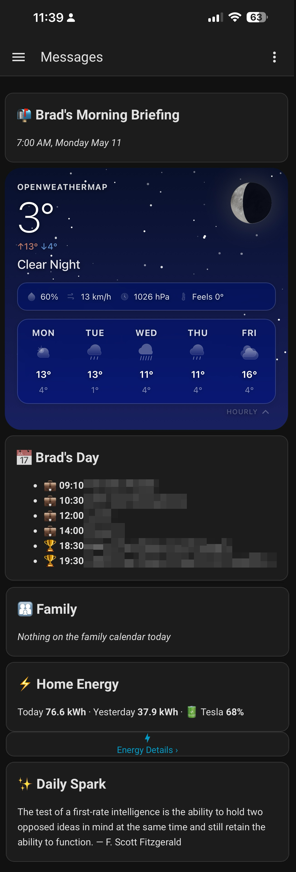
This dashboard is more customized to the reader aka logged in user and my wife and I use it everyday. It loads custom content for me vs her and updates daily at 7am for the day and when ready sends a push notification to our phones to say Good Morning and is clickable to go right to the dashboard for messages.
My view will tell me weather so I know what I should wear that day and so does my wife’s. The next section is where customization starts, I can see my calendar and what is scheduled for the day and she sees hers. Then below we see the Family calendar and my wife will also see if I have any late meetings for work that day in case I won’t be home that night, I promise I do tell her more than just through Home Assistant the day of I will not be home. Then I get an energy report on yesterday’s usage, estimated cost of my last Tesla charge, and usage so far today for the house along with estimated daily costs. Then I get a fun fact that cycles through this day in history, fun facts, jokes, a daily spark if you will. My wife also gets a classroom idea on an activity or challenge she can do with her classroom that day or week. The daily spark and classroom ideas are where the AI comes into play on the dashboard.
What You’ll Need
Both dashboards require a few HACS installs. The full list is in each README, but the short version:
Tab Kitchen: calendar-card-pro, Taskmate, TeamTracker, card-mod, Frosted Glass theme
Daily Messages: bubble-card, html-template-card, nimbus-weather-card, button-card
If you are still getting Home Assistant running for the first time, get that sorted before jumping into custom dashboards. These files assume a working HA install with your devices already integrated.
A Note on the Sanitization
Before publishing these files, I ran every entity ID through a sanitization pass. Personal names, internal user IDs, a Synology hostname, and one sensor that had my street address baked into its entity name were all replaced with ALL_CAPS placeholders. The README for each dashboard tells you exactly what to replace and where to find the right value in your own HA instance.
Nothing sensitive made it through because I checked with Claude and my own eyes too.
Want to Go Deeper?
The dashboards make a lot more sense once you have seen the builds behind them. These three posts are worth reading alongside the YAML files:
- How I built the kitchen tablet setup, the full story on the display hardware, dashboard design decisions, and how it became a permanent fixture in our kitchen
- Setting up a local voice assistant in Home Assistant, where I cover how I replaced Google Home entirely with a fully local voice pipeline
- Home Assistant Voice PE timer automations, covering one of the more practical things the Voice PE satellites do daily in our house
Grab the Files
Both dashboards are in the repo now, organised into folders with individual view files and a README for each.
→ github.com/smarthomesecrets/My-Home-Assistant-Dashboards
If you build something from these or adapt them in an interesting direction, let me know on Facebook. I am always curious to see what the setup looks like once it’s been through someone else’s hands.
Smart Home Secrets is reader-supported. We may earn a commission if you buy through our links.